How to Upload PDF to WordPress (step-by-step)
Upload through Media, then embed with a File block or share a download link.

Are you wondering how to upload PDF files to your WordPress site?
You’re in luck!
WordPress makes it easy to upload PDF files and make them available for download. Whether you want to grow your email subscribers, accept user-generated content, or create a members-only area, uploading PDF files can help you achieve these goals.
Benefits of Uploading PDF Files in WordPress
There are several benefits to uploading PDF files on your WordPress website. First, you can repurpose your existing content by converting long guides and tutorials into PDF files. This allows you to offer exclusive content to your users or use it to build an email list.
Second, uploading PDF files can boost user engagement and help lower the bounce rate. By allowing visitors to download PDF files and complete an action, you can easily reduce your website’s bounce rate.
Finally, you can use PDF files to offer exclusive members-only premium content for your paying subscribers. This is particularly useful if you have a course or membership site.
Now let’s get into uploading a PDF to WordPress.
How to Upload PDF Files in WordPress
Uploading PDF files in WordPress is a straightforward process and doesn’t require any plugins.
1. Log in to your WordPress admin area.
2. From here go to “Media” and click on the “Add New” button.
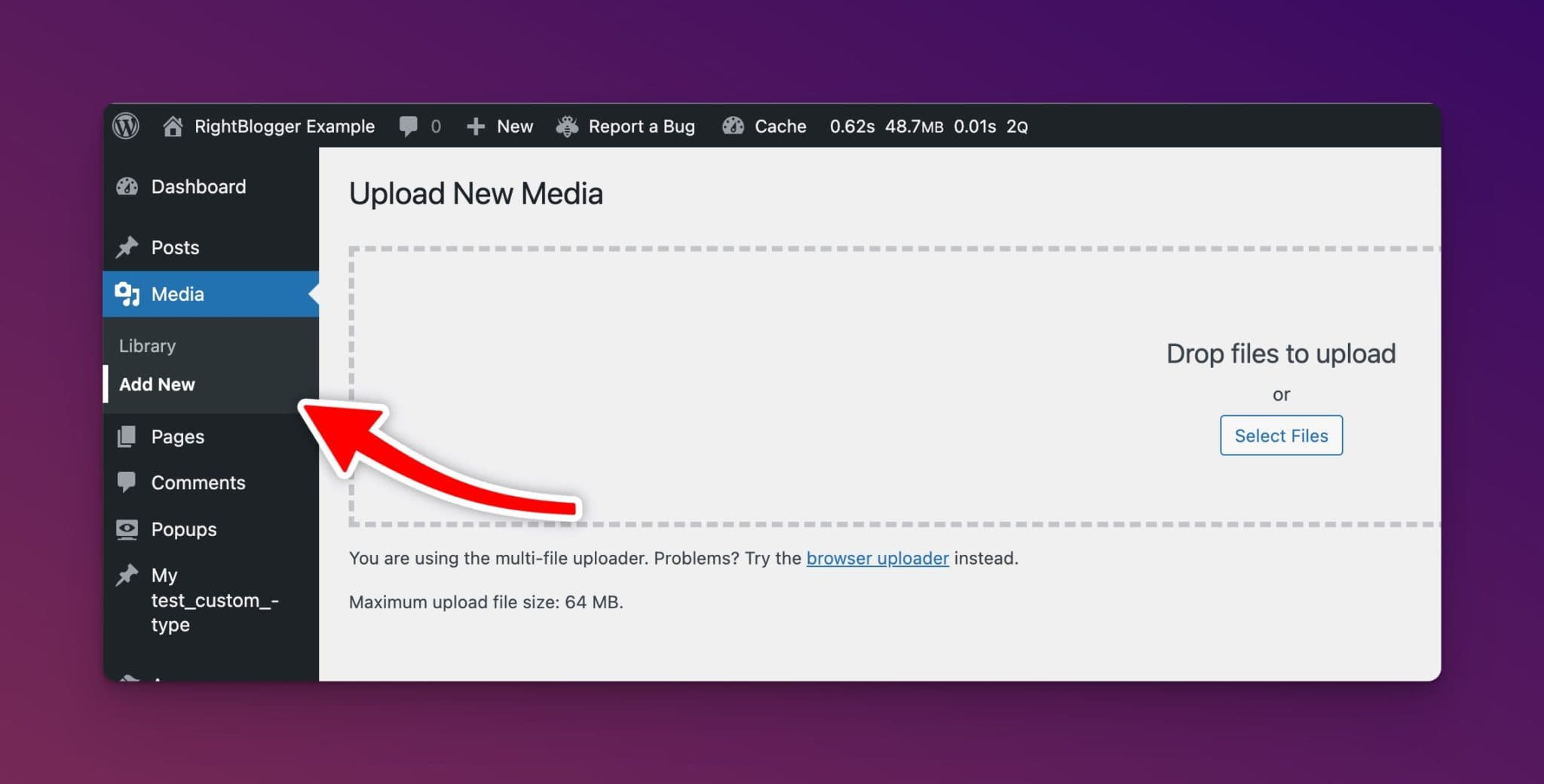
3. Drag and drop your PDF file into the WordPress media library, or click on the “Select Files” button to upload it.
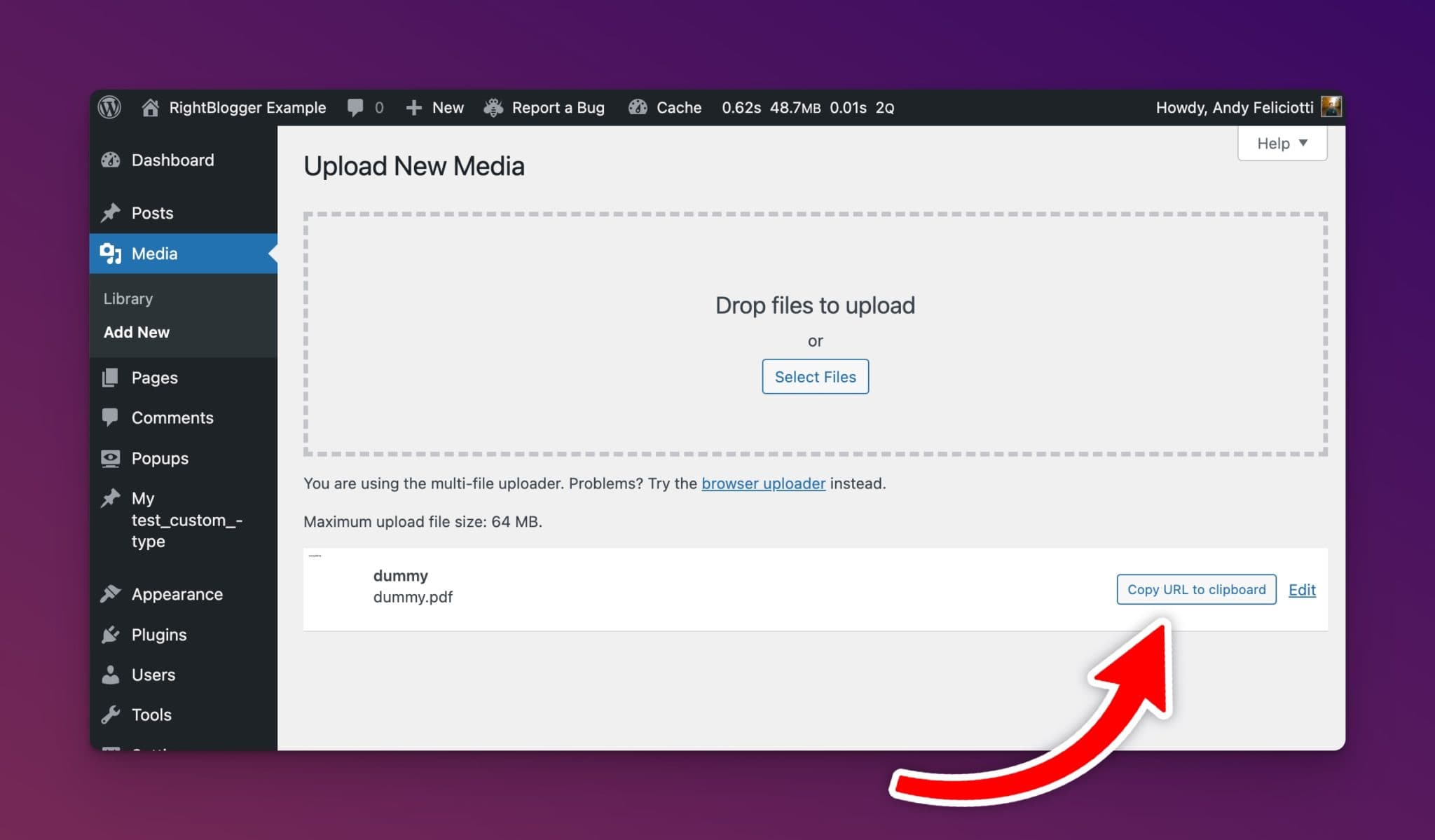
4. Once the upload is complete, your PDF file will be available on your WordPress site. You can also click the copy URL to clipboard to get your newly uploaded PDF URL.
How to Add a PDF File to a Post or Page in WordPress
After uploading your PDF file, you’ll want to add it to your posts or pages. WordPress offers two options for displaying PDF files: embedding them or providing a download link.
First let’s go over how to embed a PDF in WordPress
1. Edit the post or page where you want to add the PDF file.
2. Click on the “+” block button to add a new block.
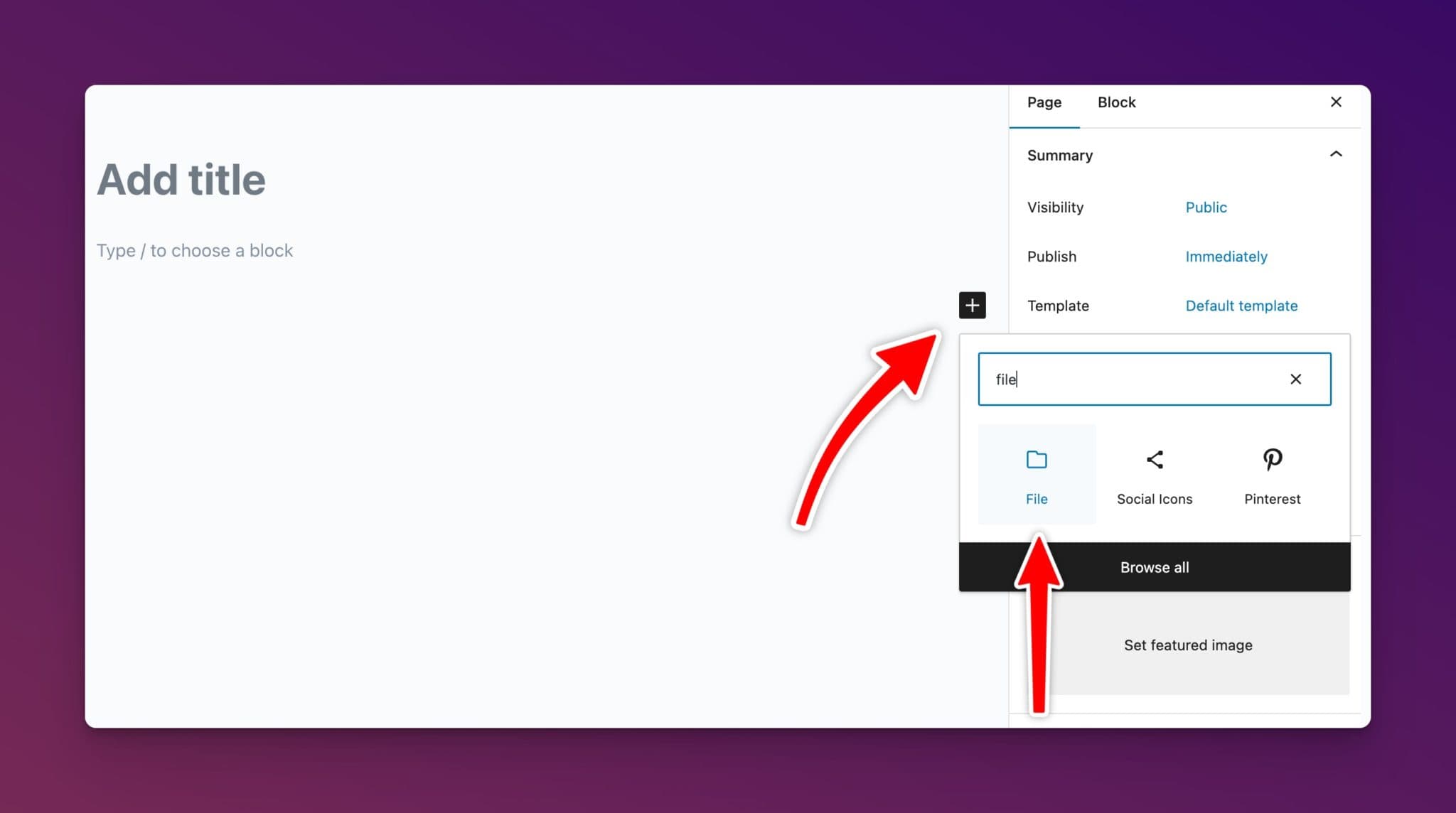
3. Select the “File” block from the options.
4. Click on the “Media Library” option to choose your uploaded PDF file.
5. Once you’ve selected the file, click “Select” to continue.
WordPress will automatically embed the PDF file in your post or page. You can see a live preview of the embedded PDF in the editor.
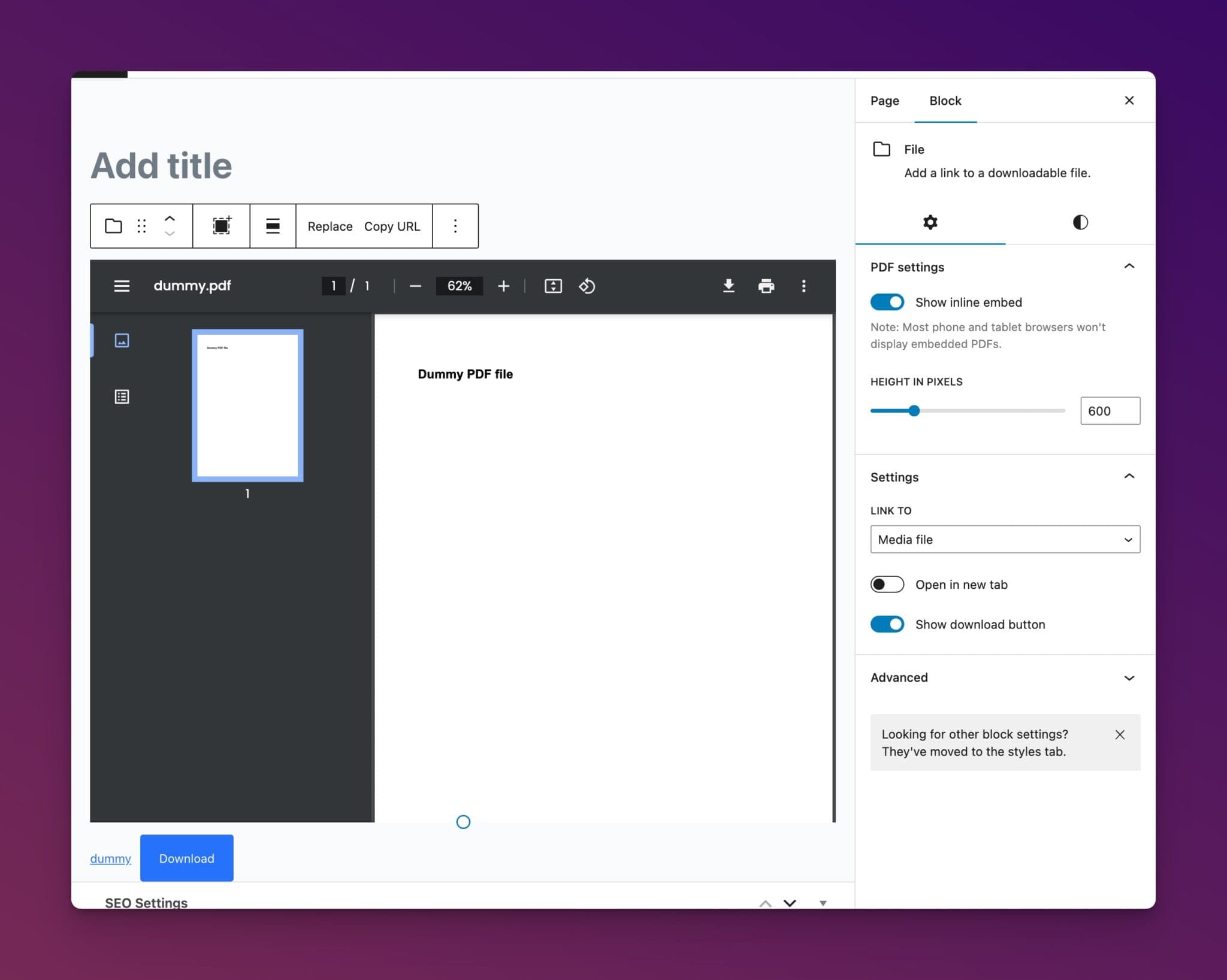
If you prefer to show a download link instead of embedding the full PDF, you can turn off the “Show inline embed” option in the block settings.
Preview the changes and, if you’re satisfied, publish the post or page.
You can also link to a PDF by copying the PDF URL from the Media tab of your admin.
This is done by going to the “Media” tab in the WordPress dashboard.
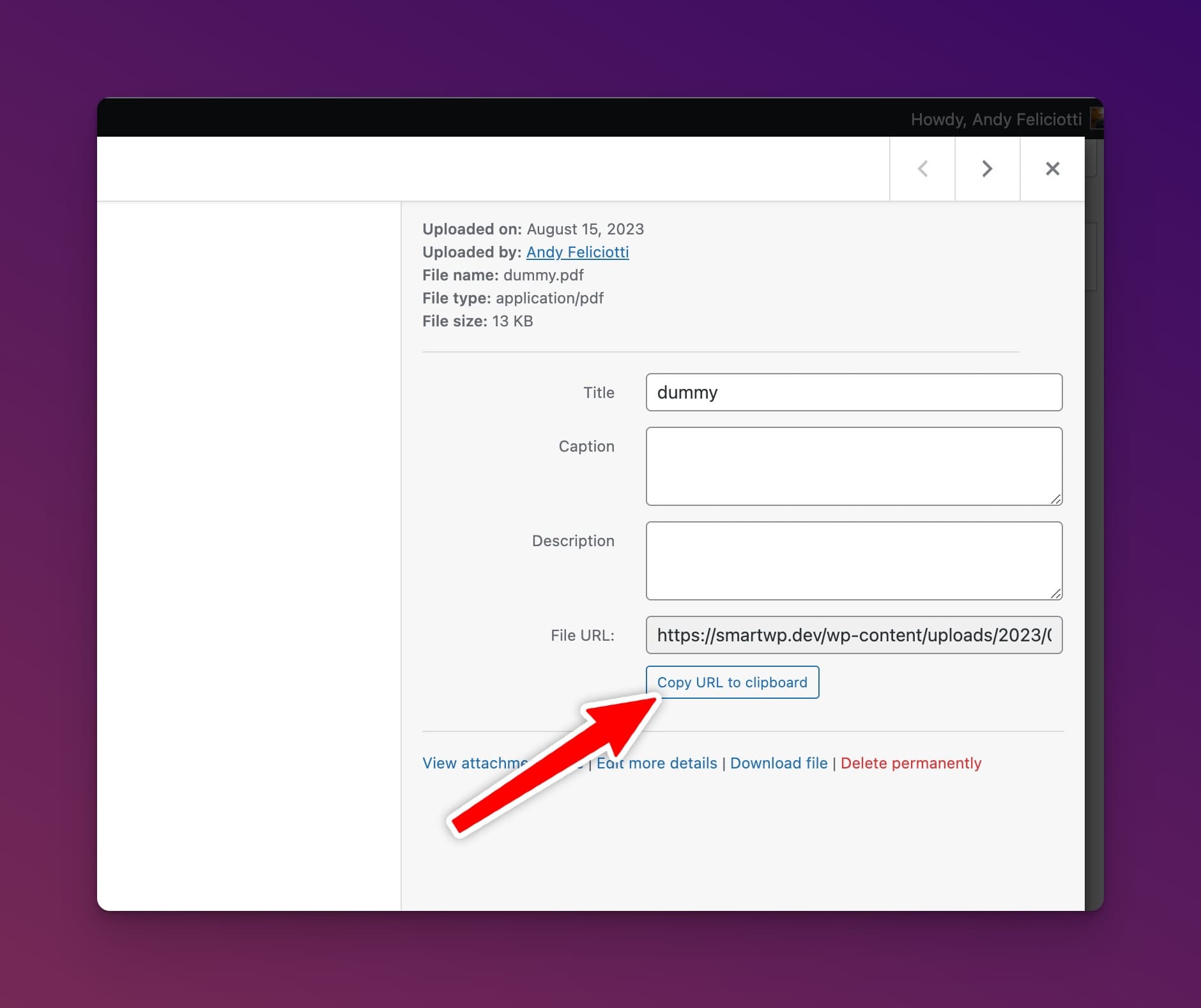
From here find your PDF, after clicking on it you can select to copy the URL to the PDF in the media browser.
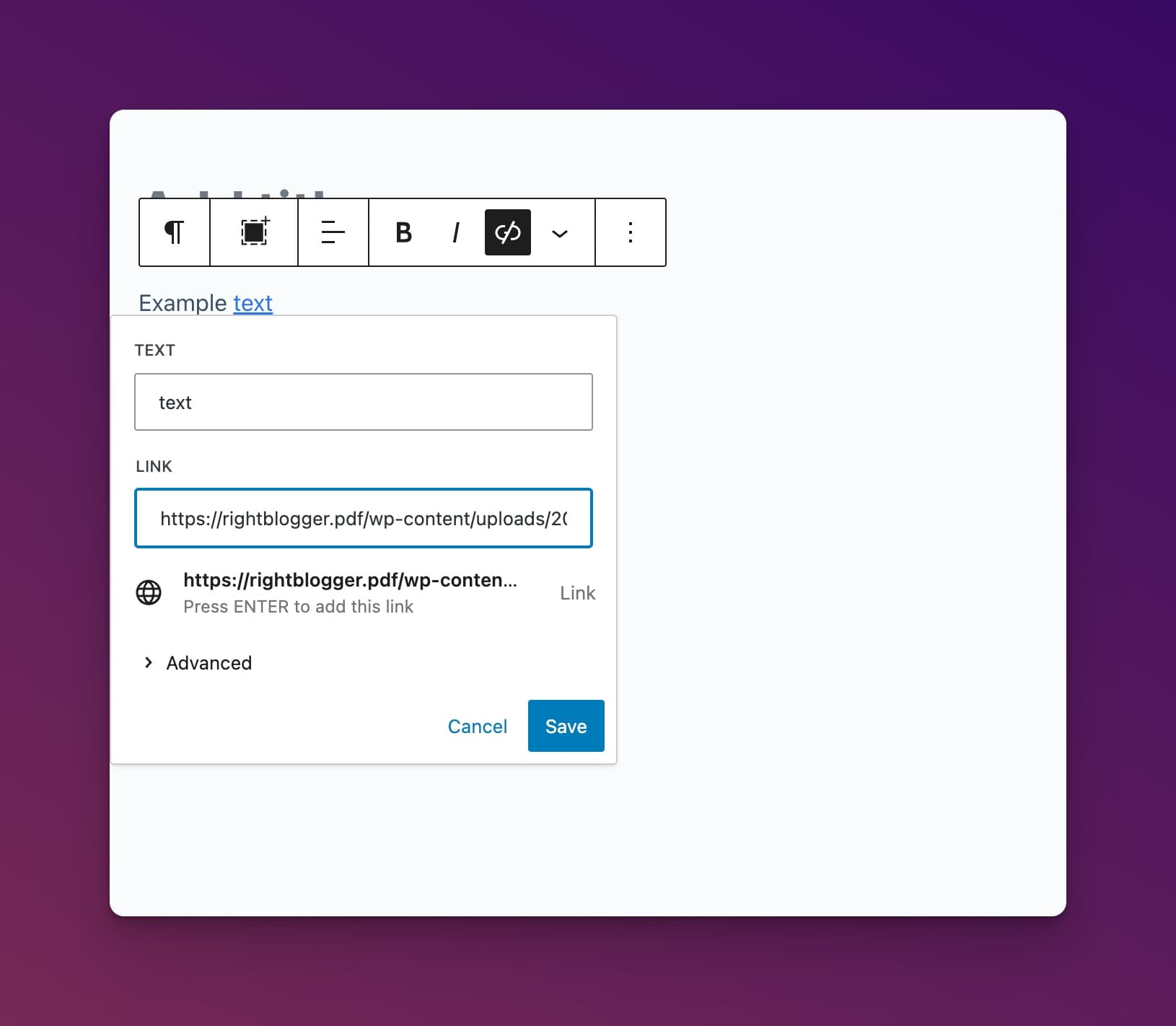
After you have the link in your clipboard you can simply paste the URL anywhere you would normally in WordPress.
Advanced PDF Usage in WordPress
Now that you’ve mastered the basics of uploading and displaying PDFs, here are some advanced tips to truly maximize their impact on your WordPress site.
1. Optimize for Search Engines (SEO)
While PDFs are great for users, search engines like Google don’t always “read” them as thoroughly as regular web pages.
Here’s how to improve SEO of PDFs:
- Descriptive File Names: Use clear, keyword-rich file names before you upload. Instead of “document1.pdf,” use something like “wordpress-seo-checklist.pdf.”
- Add Text-Based Content: Don’t just rely on the PDF. Include a brief summary or introduction on the page where the PDF is embedded or linked. This gives search engines context of the file you’re linking to.
- Consider OCR: If your PDF is image-heavy (like a scanned document), use Optical Character Recognition (OCR) software to make the text searchable. Many PDF editors offer accessibility features.
2. Track PDF Downloads with Google Analytics
Want to know how many people are downloading your PDFs? You can track this valuable data using Google Analytics. Since PDFs are served server-side, typical analytics platforms like Google Analytics won’t track a view out of the box.
There are several ways to do this, including:
- Event Tracking: This is the most reliable method. You can set up Google Analytics to track clicks on your PDF download links as “events.” This requires a bit of code setup, but there are plenty of tutorials online (search for “Google Analytics event tracking PDF downloads”). A lot of Google Analytics plugins will do this for you in WordPress.
- Thank You Page: Create a dedicated “Thank You” page that users are redirected to after downloading the PDF. Track visits to this page in Google Analytics. This is a simpler method, but less precise.
3. Enhance the User Experience
- Use a Clear Call to Action: Don’t just embed the PDF and hope people find it. Use a clear call-to-action button or text link, like “Download Our Free Guide” or “Get the PDF Checklist.” Use a clear download button.
- Mobile-Friendly Viewing: Ensure your PDFs are easy to read on mobile devices. Use a responsive PDF viewer plugin if necessary, or design your PDFs with mobile in mind (larger fonts, clear layouts).
- Consider a PDF Viewer Plugin: While WordPress’s built-in File block works, a dedicated PDF viewer plugin can offer a much better experience. Granted I prefer just to link to the PDF so users don’t need to fiddle with an embedded viewer. Viewer plugins often provide features like:
- Zoom controls
- Page thumbnails
- Full-screen mode
- Search functionality within the PDF
- Improved mobile responsiveness
4. Use PDFs for Lead Generation and Premium Content:
- Grow Your Email List: Offer valuable PDFs (checklists, ebooks, templates) in exchange for an email address. PDFs are one of the most popular lead magnets for a reason. This is a great way to grow your audience. Use a form plugin (like Contact Form 7, WPForms, or a dedicated lead generation plugin) to capture email addresses before granting access to the download.
- Create Members-Only Content: As you mentioned, PDFs are perfect for premium content. Use a membership plugin to restrict access to pages containing your exclusive PDF downloads.
- Sell PDF Downloads: You can even sell your PDF as premium content.
5. Maintain Brand Consistency:
- Branding: Ensure your PDFs align with your website’s overall branding. Use your logo, brand colors, and consistent fonts.
- Accessibility: Add alt text for images inside the PDF.
- Media Kits: Prepare a branded media kit for sponsors.
By implementing these pro tips, you can transform your PDFs from simple downloads into powerful tools for engagement, lead generation, and even revenue generation on your WordPress site.
Start experimenting and see what works best for your audience!
Conclusion
By following these steps, you can quickly and easily showcase your uploaded PDF files on your WordPress site. However, if you want more advanced features and better PDF viewers, consider using a WordPress PDF plugin. (See our list of best free WordPress plugins for more recommendations.)
Now that you know how to upload PDF files to WordPress, you can take advantage of this feature to enhance your website’s content and engage your audience.
Start uploading and sharing your PDF files today!

Article by
RightBlogger Co-Founder, Andy Feliciotti builds websites and shares photography and travel adventures on YouTube.




Automated SEO Blog Posts That Work
Try RightBlogger for free, we know you'll love it.





Leave a comment
You must be logged in to comment.
Loading comments...