How to Make Photos Load Faster on Your Website
Four targeted changes can turn a yellow PageSpeed score green in under an hour.


If you’ve ever clicked on a site and watched a blank screen while the images struggled to load, you know the frustration it causes. Slow-loading images can drive visitors away. Beyond creating a bad user experience, they can also hurt your SEO, traffic and sales.
The good news? There are practical steps you can take to make your website’s images load almost instantly.
In this post, I will go over some technical aspects and will also try to note when platforms typically do something for you, so you likely don’t need to worry about it.
Worth knowing up front: images are almost always the heaviest thing on your page, which means they usually drive your Largest Contentful Paint (LCP), one of Google’s Core Web Vitals. If your hero image is slow, your whole page feels slow, and Google notices.
Let’s work through it step by step.
Why Photo Load Speed Matters

First off, why should you prioritize faster photo loading? It’s simple: speed = satisfaction. A slow website sends nearly half your audience elsewhere.
Worse, Google ranks slow sites lower since they’re considered less user-friendly.
Your images are a big piece of the puzzle here. They’re often the heaviest components of a webpage, and if they aren’t optimized, they can be a drag on performance. Whether you’re a small business owner or a beginner blogger, fixing image load times is one of the highest-impact moves you can make on a slow site.
It’s so easy, as you’ll see in this guide, to make images load fast that there isn’t much reason not to make your site load fast for everyone.
Tips on How to Make Photos Load Faster on a Website
You don’t need to do all 9 of these. If you only have an hour, do these four in order:
- Resize and compress every image so nothing is above ~150 KB (#1 below).
- Serve them as WebP or AVIF through a CDN like Cloudflare (#2 and #5).
- Add
loading="lazy"to every image below the fold (#3). - Add
fetchpriority="high"to your hero image (also #3).
Those four moves alone usually take a site from a yellow PageSpeed score to a green one. The rest of this guide covers the deeper details, plus tactics for cases where the basics aren’t enough.
1. Resize and Compress Your Images

It’s simple, big image files are big problems. If you’re uploading massive, high-resolution photos straight from your phone to your website, you’re probably killing your load time.
First, a little disclaimer, if you are using a well-made WordPress theme, resizing likely isn’t an issue since they’ll be properly resized within their display when they are uploaded to WordPress. So I only recommend manually resizing images if you know it’s a problem, mainly because it’s a time sink.
Let’s fix large images:
- Resize before uploading. Only upload photos in the dimensions they’ll be displayed at. For example, if your blog only renders images at 800px wide, resize them to ~1600px (for retina) before uploading, not the 4032px original from your phone. Tools like Adobe Photoshop or Canva work well, but free online options like CrushImage will do it in seconds. A well-made CMS or WordPress theme will handle this for you on upload.
- Compress aggressively. For photos, use JPEG (or WebP/AVIF for even smaller files at the same quality). PNG is the right pick for graphics with transparency or sharp edges, but it’s the wrong pick for photos: PNG files are typically 5-10x larger than the JPEG equivalent at no real quality gain on photographic content. We’ll dive deeper into when to use which file type in the next section.
- Pick the right quality level. For JPEG and WebP, 75-85% is the sweet spot. You’ll typically cut file size by 30-60% with no visible quality loss. Going below 70% is where things start to look noticeably fuzzy.
After working on thousands of WordPress sites, I’ve found that 100 KB is a good threshold to aim for when it comes to image compression. Every individual image should be below that, if possible (the smaller, the better). This is important for your hero and featured images, as these will usually be your Largest Contentful Paint (LCP) element. And LCP is one of the three Core Web Vitals metrics. Beyond image optimization plugins, I’ve found the free Squoosh tool from Google super handy for further fine-tuning things.
Brian Lee Jackson, Perfmatters
To put real numbers on what this looks like: a 4032×3024 photo straight off an iPhone is typically around 3.5-4 MB. Resize that to 1600px wide (plenty for any blog) and export at JPEG 80% and you’re at ~380 KB. Convert that JPEG to WebP and you’re at ~220 KB. Convert to AVIF and you’re at ~140 KB. Same visible image, 25x smaller file.
Want to avoid doing everything manually? A plugin like ShortPixel can handle resizing and compression automatically. And if you use a CDN like Cloudflare, Cloudflare Polish on a paid plan does the same conversion on the fly as images are served.
2. Choose the Right Image Format
Choosing the right file format plays a huge role in load times. Here’s a quick breakdown:
- JPEG. Best for photos and complex images with lots of colors. Excellent quality at small file sizes. Think typical photographs of places, people, and products.
- PNG. For images needing transparency or sharp, clean lines. File sizes are larger than JPEG, so reserve it for graphics like logos or UI screenshots, not photos.
- WebP. A modern format with significantly better compression than JPEG at the same quality. Supported by almost all browsers and often your fastest option. Many CDNs will auto-convert your JPEGs to WebP at the edge.
- AVIF. The newest of the three modern formats, with even better compression than WebP (often 20-30% smaller at the same quality). Browser support is now solid across Chrome, Firefox, Safari, and Edge, so it’s a great choice if your CDN or image plugin can serve it with a WebP or JPEG fallback.
- SVG. For logos, icons, and simple illustrations, SVG is almost always the right call. It’s a vector format, so it scales to any size without growing the file size or losing sharpness. Not for photos.
Unsure? For photos in your posts, lean on JPEG (or let your CDN convert to WebP/AVIF on the fly). For logos and icons, use SVG. For graphics with transparency, use PNG.
Quick tip: if you’re sourcing images from the web (reference screenshots, stock photos, etc.), a free Chrome extension like Save to Image lets you right-click and save directly as JPEG, PNG, or WebP, so you start with the right format instead of converting later.
3. Enable Lazy Loading for Images
Lazy loading means exactly what it sounds like: “only load what the user can see right now.” Why load images at the bottom of the page if your visitors haven’t scrolled there yet? It’s especially handy for pages with lots of media.
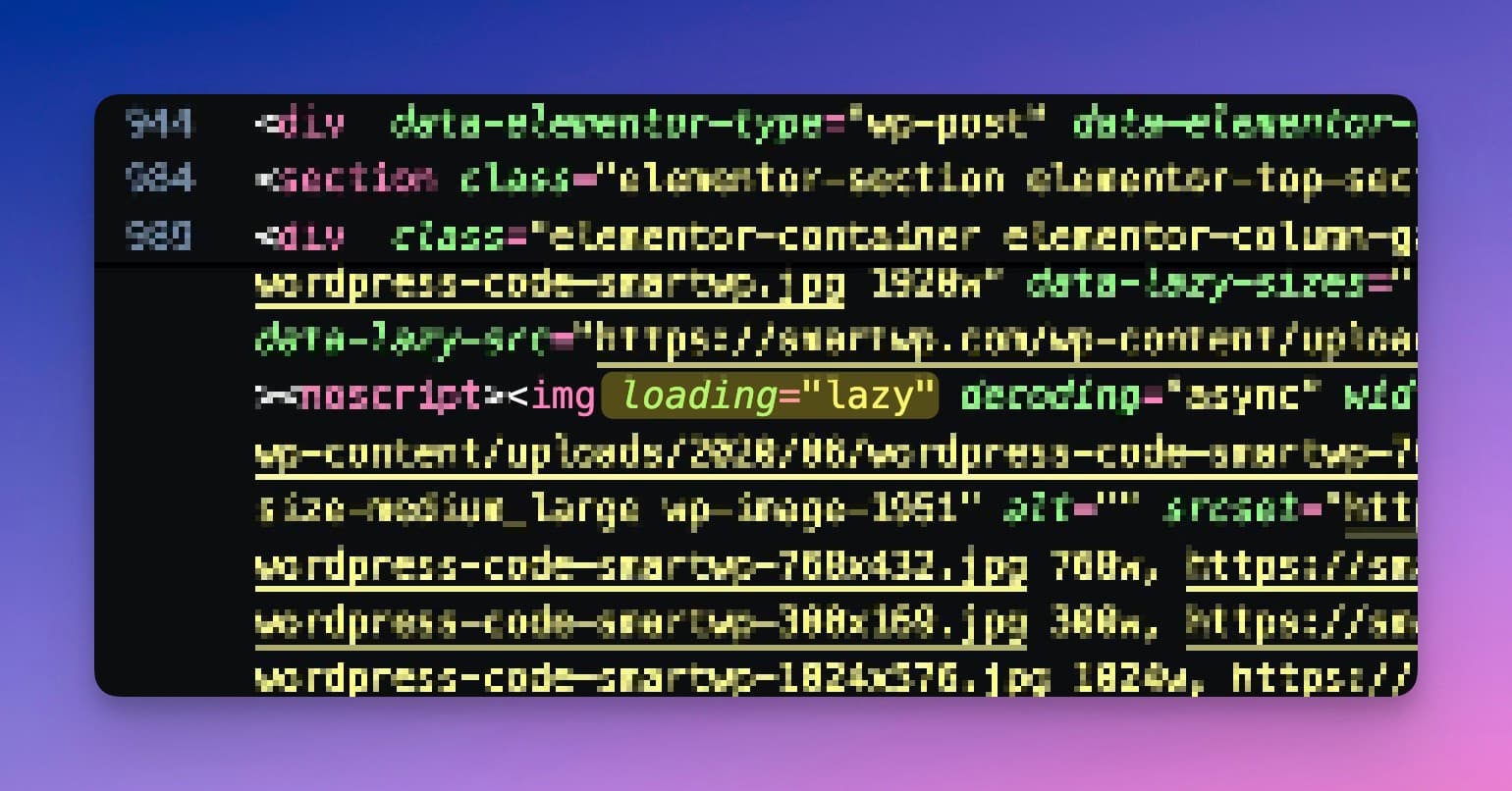
Most modern content management systems, like WordPress, have built-in lazy load options. If not, plugins like WP Rocket or Perfmatters can add it. If you’re on a JavaScript framework like Next.js or Astro, use the framework’s built-in image component (Next.js <Image>, Astro <Image>) instead of a raw <img> tag. They handle lazy loading, responsive sizing, and format conversion for you.
One important exception: do not lazy-load your hero or featured image. That’s the image Google is usually timing for LCP, and adding loading="lazy" to it actively slows your score. For your above-the-fold hero, add fetchpriority="high" instead, which tells the browser to grab it first:
<img src="hero.jpg" alt="..." width="1200" height="600" fetchpriority="high" />For even more control, you can also preload the hero in your <head>: <link rel="preload" as="image" href="/hero.jpg">. Most good performance plugins (WP Rocket, Perfmatters) can handle this for you automatically once you tell them which image is the LCP element.
4. Use Responsive Images
Have you ever visited a website on your phone, only to see images struggle to load? Or images that appear low resolution? Responsive images ensure your users always get an appropriately sized version of your photo for their device, be it a 15-inch laptop or an iPhone.
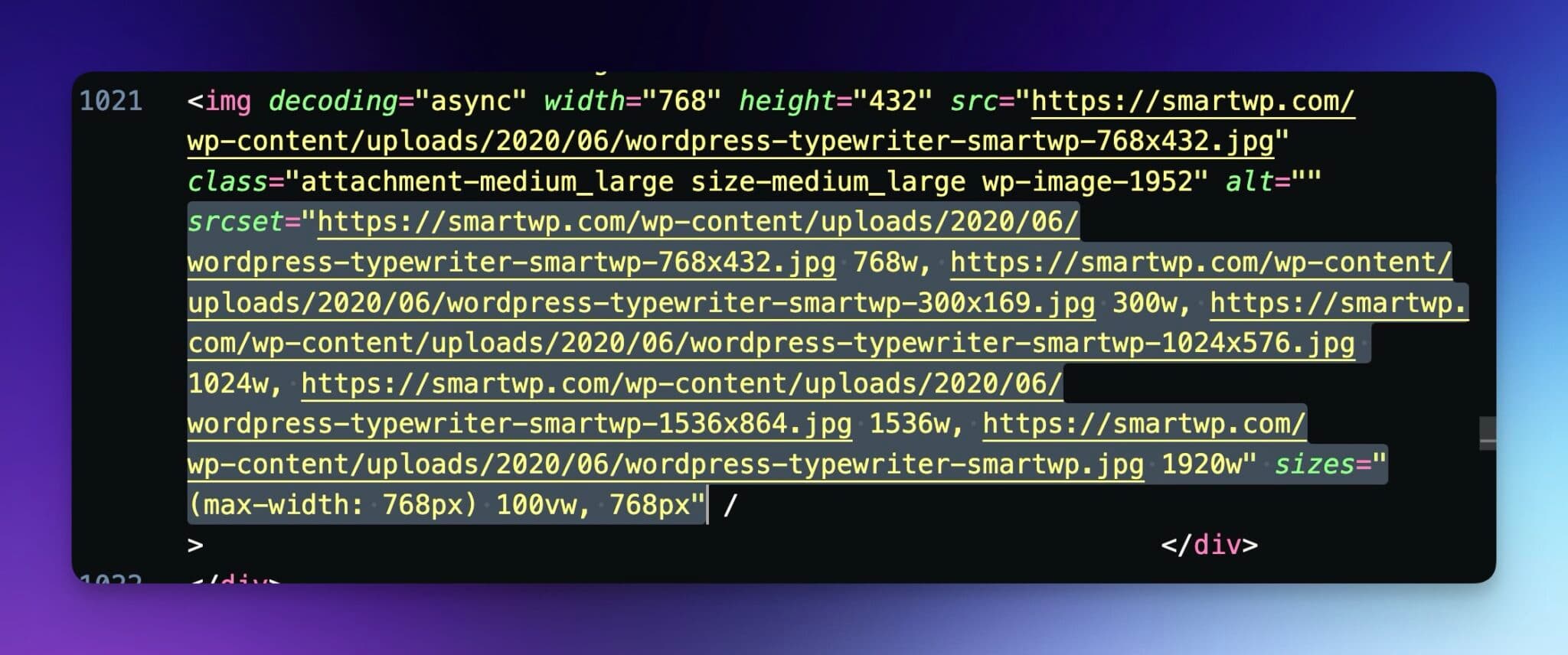
To set this up:
- Use the
srcsetattribute in your image tags to provide multiple image sizes. The browser will pick the one that fits best. - Always include
widthandheightattributes. The browser uses them to reserve space before the image loads, which prevents Cumulative Layout Shift (CLS), another Core Web Vital Google measures. No attributes means the page jumps around as images load, and your CLS score tanks.
Most blogging platforms (like WordPress) will manage this for you and automatically generate a series of images that respond effectively based on the device.
5. Use a Content Delivery Network (CDN)
Let’s say your website is hosted on a server in New York, but a visitor in Tokyo wants to access your site. The distance can result in delays due to the limitation of the speed of light.
A Content Delivery Network (CDN) solves this by storing copies of your images on multiple servers worldwide, serving them from the nearest location.
Using a CDN provider like Cloudflare (free, our personal favorite), ShortPixel, or Bunny.net can significantly improve image load speed, especially for users in different geographies.
Here is a quick breakdown of how you’d set up each:
- Cloudflare: Cloudflare sits in front of your website at the DNS level, so it can feel a little more technical to set up, but I recommend it. They add security and site speed to your site. Best of all, since they sit between your website and the outside world, their CDN capabilities happen without changing your site and caching happens automatically.
- ShortPixel: Shortpixel offers a dedicated WordPress plugin you can use with a paid subscription to compress, resize, and serve images from a CDN.
- Bunny.net: Like ShortPixel, Bunny.net also offers a WordPress plugin to compress and serve images from a CDN.
One more thing to look for: your CDN should be serving images over HTTP/2 or HTTP/3. Older HTTP/1.1 connections load images one at a time, while HTTP/2 and HTTP/3 pull many images in parallel over a single connection. Every major CDN (Cloudflare, Bunny.net, ShortPixel) handles this by default, so you usually don’t have to think about it, but it’s worth confirming in your host’s settings if you’re self-hosting images.
Keep in mind if you use a service like Squarespace or Webflow they handle things like a CDN for your assets.
6. Cache Images for Returning Visitors
Browser caching will speed up things dramatically. When a visitor comes to your site, their browser saves the images so they don’t need to be reloaded on their next visit.
Most caching plugins for WordPress, like WP Super Cache, Perfmatters, and WP Rocket, have simple options to enable image caching with just a few clicks (or by default).
Under the hood, what these plugins (and a good CDN) are doing is setting a Cache-Control header on your images. The sweet spot for static images that rarely change is something like Cache-Control: public, max-age=31536000, immutable, which tells browsers to hold onto the file for a full year. If you’re on Cloudflare, this is handled automatically through their caching rules.
7. Avoid Hotlinking
Hotlinking happens when someone embeds your image on their site, but it’s still hosted on your server. This not only eats up your bandwidth but can also slow down your site. A quick way to avoid this is by disabling hotlinking in your server settings or via plugins.
We personally use Cloudflare and don’t pay by bandwidth, so it’s not our biggest concern. That said, it works both ways: make sure the images on your site are hosted by you, not hotlinked from someone else, so you stay in control of quality, format, and caching.
8. Test and Monitor Performance
Even after applying these changes, it’s important to keep an eye on your site’s performance. Tools like Google PageSpeed Insights help you identify and fix any remaining bottlenecks. There are also a ton of other improvements you can make to site speed using information from PageSpeed Insights. They’ll often point out images that need adjustment, for example, oversized photos or missing width and height attributes.
9. Don’t Rely on Defaults
Using a drag-and-drop website builder? Be careful. Many of them automatically upload images without resizing or compressing them. Always check if your CMS allows custom settings for image optimization, or reach out to their support to make sure optimizations are enabled.
Frequently Asked Questions
Why are images loading slowly on my website?
The most common culprits are oversized image files (uploading straight from a phone or camera), the wrong format (PNG when a JPEG would do), no compression, no CDN, and no lazy loading. Fix those five things and most sites see an immediate improvement in load times and Core Web Vitals scores.
How can I reduce image load time quickly?
The fastest wins, in order: keep every image under 100 KB where possible, serve WebP or AVIF through a CDN like Cloudflare, lazy-load everything below the fold, and add fetchpriority="high" to your hero image. You can do all of this in an afternoon with the right plugins.
What is the best image format for fast loading?
AVIF is currently the most efficient format, typically 20–30% smaller than WebP at the same quality, with solid browser support. WebP is the safe modern default. For photos where you need broad compatibility, stick with JPEG. Use SVG for logos and icons, and PNG when you need transparency.
How do I lazy load images in HTML?
Add the loading="lazy" attribute to any image that isn’t visible when the page first loads: <img src="photo.jpg" alt="..." loading="lazy">. Every modern browser supports it natively, no JavaScript required. Skip this attribute on your hero or featured image, since lazy-loading the LCP element will actually slow your page down.
Do images impact SEO?
Yes. Google uses Core Web Vitals (LCP, CLS, and INP) as a ranking signal, and images are almost always the heaviest element on a page, which means they’re the biggest lever you have. Slow images directly hurt your rankings, while well-optimized images can lift them. Worth noting: “image SEO” (alt text, descriptive filenames) and “image speed” are separate disciplines. Alt text helps Google Images understand your photos. Compression and format choice help your page load. Do both.
Final Thoughts
Making photos load faster on your website doesn’t have to be complicated. With the right tools and a bit of strategy, you can create a lightning-fast browsing experience that keeps visitors engaged and helps your SEO.
Ready to take the next step? Start by compressing those oversized images and explore tools like CDNs, caching plugins and don’t forget lazy loading.
Looking to optimize for traffic even further? Check out this post on 9 Free AI SEO Tools to Get More Traffic. It’s packed with practical tips to supercharge your site.
Give it a try, and let us know how your load times improve. Remember, every second counts!
Complete Blog Automation in Minutes

Join 48,879+ marketing agencies, pro creators, and marketing teams in using RightBlogger’s powerful blog automation system. You’ll drive more traffic from Google and ChatGPT with our AEO & SEO automated publishing. Plus, you’ll access our library of 80+ standalone tools, online courses, a private community, and more.

Article by
RightBlogger Co-Founder, Andy Feliciotti builds websites and shares photography and travel adventures on YouTube and his travel blog.




Automated SEO Blog Posts That Work
Try RightBlogger for free, we know you'll love it.





Leave a comment
You must be logged in to comment.
Loading comments...