The 10 Best SEO Chrome Extensions and Toolbars for Bloggers
Start with three essentials for on-page checks, drafting, and broken-link cleanup.


An SEO Chrome extension (people often call them SEO toolbars) shows you what’s going on behind a page while you browse: its title tag, meta description, headings, links, redirects, and sometimes keyword or backlink data. That makes them good for quick checks on your own drafts and on the pages you’re trying to outrank.
They don’t replace Google Search Console, your analytics, or a full site crawler. Think of them as the thing you reach for when you want an answer about one page in a few seconds.
The names, publishers, and pricing below match each extension’s Chrome Web Store listing as of November 2026.
The 10 extensions at a glance
| Extension | Publisher | What it’s for | Price |
|---|---|---|---|
| Detailed SEO Extension | Ahrefs | On-page checks: title, meta, headings, links, schema | Free |
| Ahrefs SEO Toolbar | Ahrefs | On-page and link checks, SERP research tools | Free core tools; Ahrefs metrics need a paid Ahrefs plan |
| SEOquake | Semrush | Page audits, SERP overlay, keyword density | Free; a free Semrush account adds more metrics |
| MozBar | Moz | Domain Authority, Page Authority, link highlighting | Free; DA/PA need a free Moz account, more with Moz Pro |
| RightBlogger (ours) | RightBlogger | On-page SEO report plus AI rewriting on any page | SEO report free; AI tools need an account; SERP keyword data on paid plans |
| Keyword Surfer | Surfer | Search volume and keyword ideas inside Google results | Free |
| Check My Links | SelectorsHub | Finding broken links on a page | Free |
| Redirect Path | Ayima | Redirects and HTTP status codes | Free |
| NoFollow | IgorWare | Highlighting nofollow, sponsored, and ugc links | Free |
| Wayback Machine | Internet Archive | Viewing older versions of a page | Free |
Which ones to install first
Most bloggers only need two or three. Detailed covers on-page checks, Check My Links handles broken links when you refresh old posts, and either the Ahrefs toolbar or SEOquake adds SERP data if you want it. Several of these overlap, so add another only when you can name the job it does that your current ones don’t.
1. Detailed SEO Extension (on-page checks)

Free. Detailed shows a page’s SEO basics in one click: the title tag and meta description, meta robots and X-Robots-Tag directives, the canonical URL, and the full heading outline. Other tabs list links (with nofollow and sponsored flagged), images, structured data, and hreflang. It can also switch your user agent to Googlebot and pull “People also ask” questions from a search.
Its Chrome Web Store listing names Ahrefs as the developer, shows 600,000 users and a 4.8 rating as of November 2026, and the Detailed extension page describes it as completely free. There’s a Firefox version too.
Two good times to run it: on your own draft before you publish, to catch a missing H1 or an odd canonical, and on the top few results for your keyword, to compare how they structure titles and headings.
2. Ahrefs SEO Toolbar (on-page, links, and SERP tools)

Free core tools; Ahrefs metrics need a paid plan. The Ahrefs SEO Toolbar does more without an account than many people assume. Per its listing, the free tools cover titles, meta descriptions, headers, canonicals, and indexation directives, plus link highlighting, redirect tracing, broken link checks, CSV export, user agent switching, and HTTP headers. On Google, you can switch region and language and see keyword ideas.
What you don’t get for free is Ahrefs’ own data: keyword counts, traffic estimates, and referring domains for each site or result. Those need an Ahrefs subscription. If you already pay for Ahrefs, this is the obvious toolbar to keep, since it puts those numbers on every page and search result.
3. SEOquake (page audits and SERP overlay)

Free. SEOquake (now listed as “SEOquake: On-Page SEO Checker”) is published by Semrush. It starts with a compact Quick View of the page, and a Full Report adds an audit that checks robots directives, hreflang, sitemap availability, image alt text, and structured data.
It also adds a SERP overlay with position numbers and Semrush metrics under each Google result, a view of which pages AI Overviews cite, a keyword density report, and a side-by-side comparison of URLs. The core reports work without an account. A free Semrush account adds Authority Score and deeper backlink data.
It shows a lot at once. If that’s more than you want on every page, turn off the parts you don’t use in its settings.
4. MozBar (Domain Authority and link signals)

Free, with a free Moz account for DA and PA. MozBar is the toolbar to use if you want Moz’s Domain Authority (DA) and Page Authority (PA) on every page and search result. Its listing lays out three levels: guest mode shows on-page elements and internal link details, a free Moz Community account adds DA and PA, and Moz Pro unlocks Spam Score, Page Optimization, and keyword ranking data.
Moz rebuilt it as MozBar V5. Its store rating was 1.4 out of 5 across about 2,500 ratings as of November 2026, so read the recent reviews before installing. Treat DA and PA as rough comparisons between sites, not as scores Google uses.
5. RightBlogger (SEO report plus AI writing on any page)

SEO report free; AI tools need a RightBlogger account. Disclosure: RightBlogger makes this one, and this is our site. The RightBlogger Chrome extension has two halves.
The SEO report works without an account. Click the icon on any page to see the title and meta description with live character counts, a preview of the Google result, the canonical URL, indexing status, robots.txt rules, structured data, social tags, and every heading, link, and image. It flags missing or duplicate H1s, skipped heading levels, and images without alt text, and splits links into internal, external, and nofollow. Each list can be copied as CSV.
The other half is writing. Highlight text on any page, right-click, and fix grammar, rewrite, shorten, expand, or translate it, then use Replace Selection to put the new version back in place, including in the WordPress editor. From the report it can also write a new meta title, meta description, or alt text. These AI tools need you to be signed in to RightBlogger. Keyword volume, difficulty, and CPC on Google results are available on paid plans, which start at $49 a month billed annually.
It’s much newer and smaller than the others here (a few hundred users as of November 2026) and only runs in Chromium browsers, with no Firefox build. Pick it if you want to fix the copy as well as inspect it. If you only need to read markup, Detailed covers that.
6. Keyword Surfer (keyword ideas in Google results)

Free. Keyword Surfer, from Surfer, adds a side panel to Google results with search volume, cost per click, and a list of related keyword ideas for whatever you searched. You can save keywords into collections and export them as CSV. Surfer’s extension page says it’s free with no paid tier mentioned.
Volumes are estimates and won’t match paid tools exactly, so use them to judge whether a topic has any demand rather than to forecast traffic. Store reviews were mixed as of November 2026 (2.7 out of 5). For other options, see our list of free keyword research tools.
7. Check My Links (broken link checks)

Free. Check My Links scans every link on the current page and marks which ones work, which are broken, and which redirect. It can skip sections like the header and footer, export a report of the broken ones, and also check links inside Google Docs and Sheets.
It’s now published by SelectorsHub. The listing notes it may start showing product tips a few days after install. Run it on an old post before you refresh it, since dead links are one of the quickest things to fix.
8. Redirect Path (redirects and status codes)

Free. Redirect Path from Ayima shows every hop a URL takes before it loads, including 301, 302, 404, and 500 responses and client-side meta and JavaScript redirects. It also shows HTTP headers and the server IP, and its listing says the checks run on your own computer.
The codes you’ll see most:
200means the page loaded normally.301is a permanent redirect.302is a temporary redirect.404means the page wasn’t found.
It’s most useful after you change slugs, move a site, or update affiliate links. If an internal link passes through two or three redirects before it lands, point it straight at the final URL.
9. NoFollow (qualified links at a glance)
Free. NoFollow by IgorWare draws an outline around nofollow links and supports the sponsored and ugc values too. It also detects nofollow and noindex robots meta tags on the page, and you can turn it off for specific sites.
Use it to confirm your affiliate and sponsored links are marked, and that none of your internal links were set to nofollow by mistake.
10. Wayback Machine (page history)
Free. The official Wayback Machine extension from the Internet Archive opens the oldest, newest, or full calendar of saved copies of the page you’re on. It can save the current page, and when you hit a 404 it checks whether an archived copy exists. Most features work without an account.
For SEO, that means you can see how a competitor’s page looked before its rankings changed, recover what used to be on a dead URL, or check when something was first published before you cite it.
A quick pre-publish check using these tools
- Check the title and meta description length with Detailed or RightBlogger, or paste them into our free SERP Preview tool.
- Read the heading outline and make sure there’s one H1 and no skipped levels.
- Confirm the canonical URL and robots directives are what you expect.
- Run Check My Links and fix anything broken.
- Use NoFollow to confirm paid and affiliate links carry
rel="sponsored".
Do these work in Edge, Brave, or Firefox?
Edge and Brave are built on Chromium and can install extensions from the Chrome Web Store. Firefox can’t, so you need a separate Firefox build from the publisher. Detailed has one; RightBlogger doesn’t. For the rest, check the publisher’s site, and install only from an official store.
What an SEO extension can’t do
- Track your rankings over time. Use Google Search Console or a rank tracker.
- Crawl a whole site. Use a crawler such as Screaming Frog or Sitebulb.
- Tell you whether AI Overviews or ChatGPT cite you. Our guide to finding AI Overview keywords in Search Console covers the manual route, and our roundup of LLM SEO tools covers paid trackers.
Check permissions and publishers before you install
Most SEO extensions ask to read and change data on the sites you visit, because that’s how they analyze pages. Keep the list short and remove the ones you stop using. In Chrome’s extension settings you can limit an extension’s site access to when you click it, or to specific sites.
Extensions also change hands. Two on this list are now listed under different publishers than the ones that built them: Detailed shows Ahrefs as its developer, and Check My Links shows SelectorsHub. That’s not a problem in itself, but it’s worth glancing at the developer name and recent reviews on the store listing once in a while.
Blog Automation That Keeps Your Posts Ranking
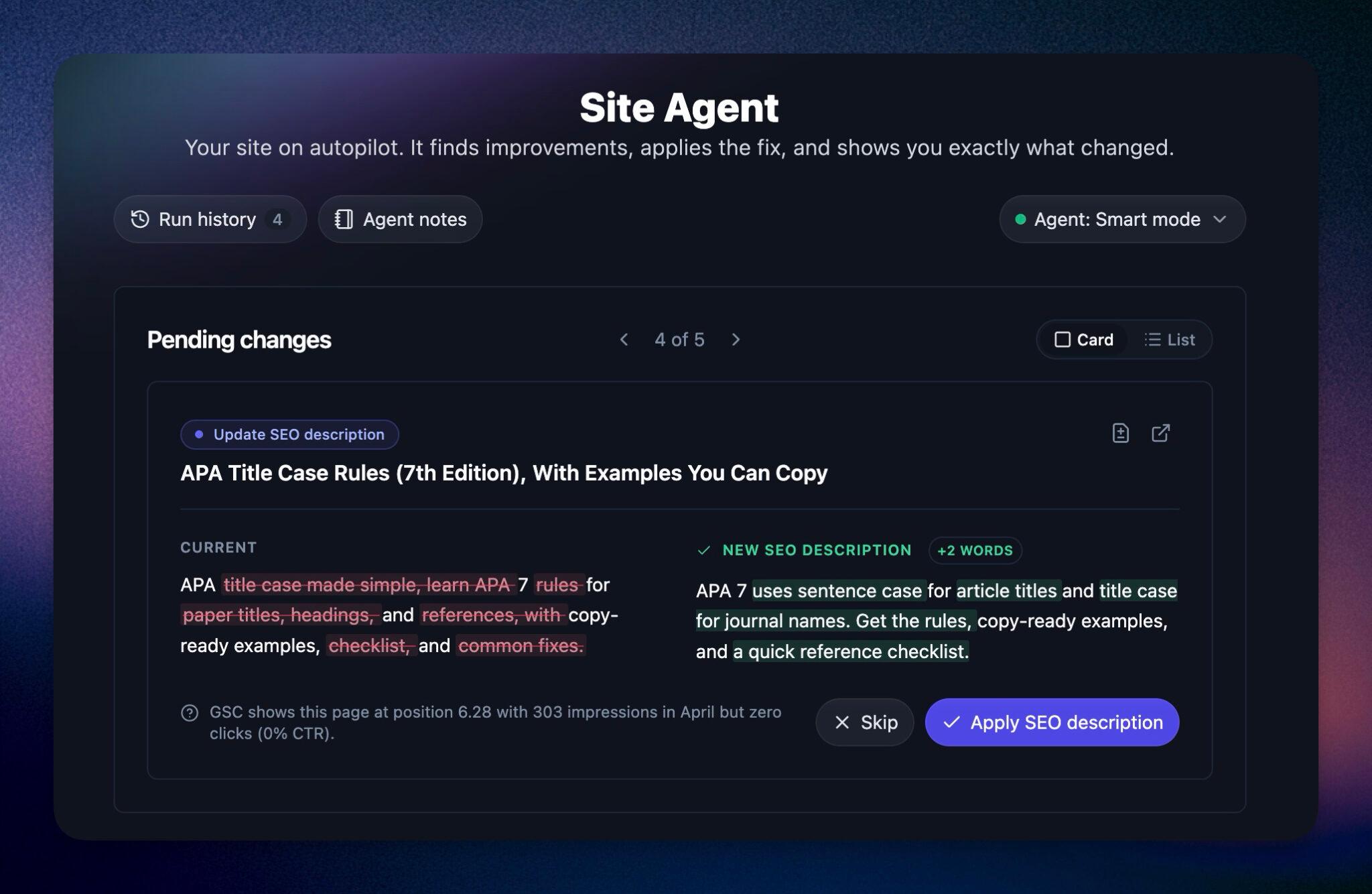
RightBlogger finds keywords, writes SEO articles, and publishes them to your blog. Then its Site Agent uses your Search Console data to keep older posts in shape, adding internal links, sharpening weak meta descriptions, and fixing stale years and broken links. Join 51,000+ bloggers using it to grow traffic from Google and ChatGPT.

Article by
RightBlogger Co-Founder Andy Feliciotti focuses on website development and shares his travel and photography adventures on YouTube and his blog.

Automated SEO Blog Posts That Work
Try RightBlogger for free, we know you'll love it.





Leave a comment
You must be logged in to comment.
Loading comments...