How to Connect Your Wix Site with RightBlogger
Connect your Wix site to RightBlogger and send posts with one click. You can publish instantly or send posts as drafts to review first.
What you need
- Wix Site ID
- Wix API Key
- Wix Account ID
Get your credentials
1) Site ID
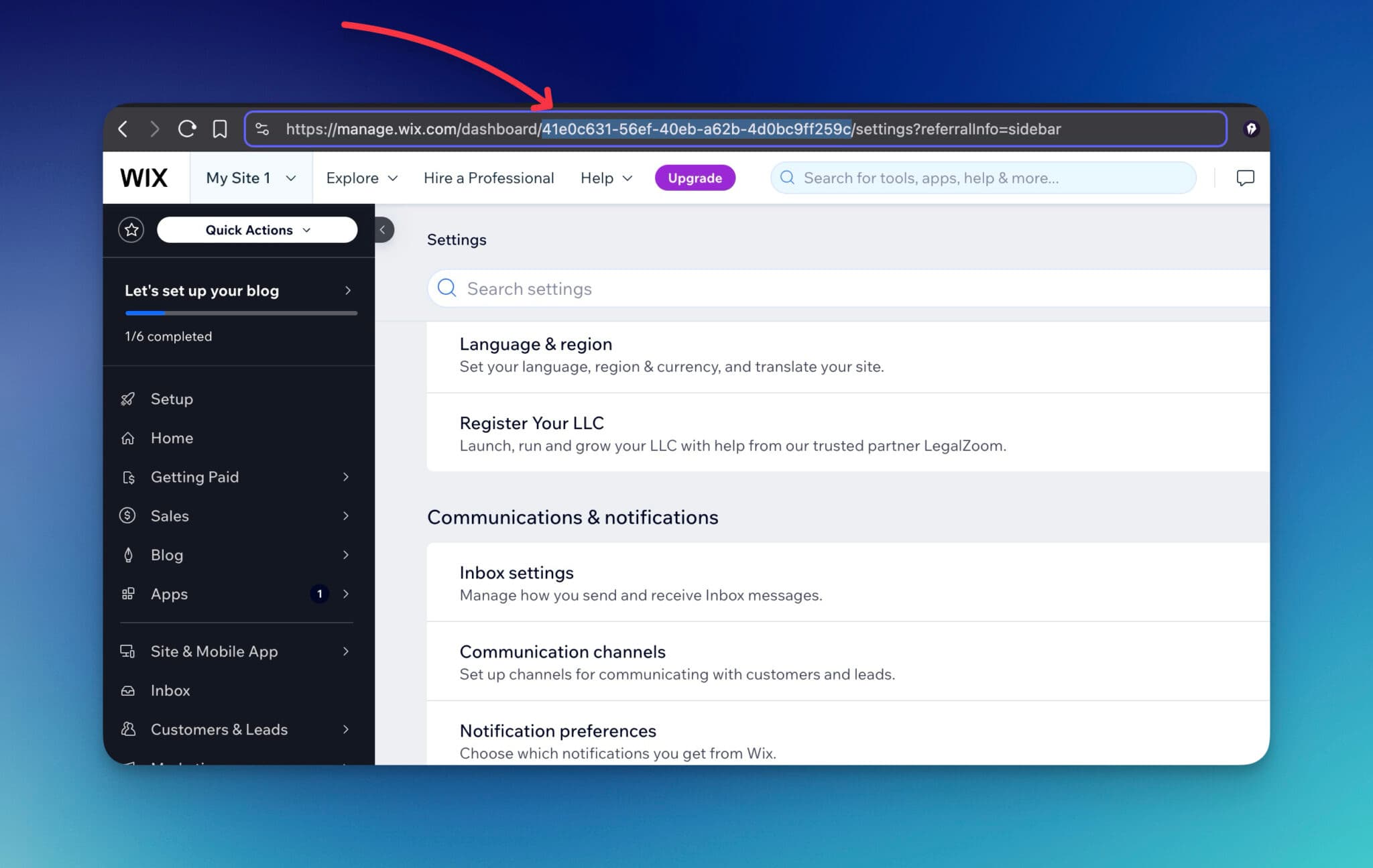
Open your Wix dashboard. The Site ID is in the URL path.
2) API Key
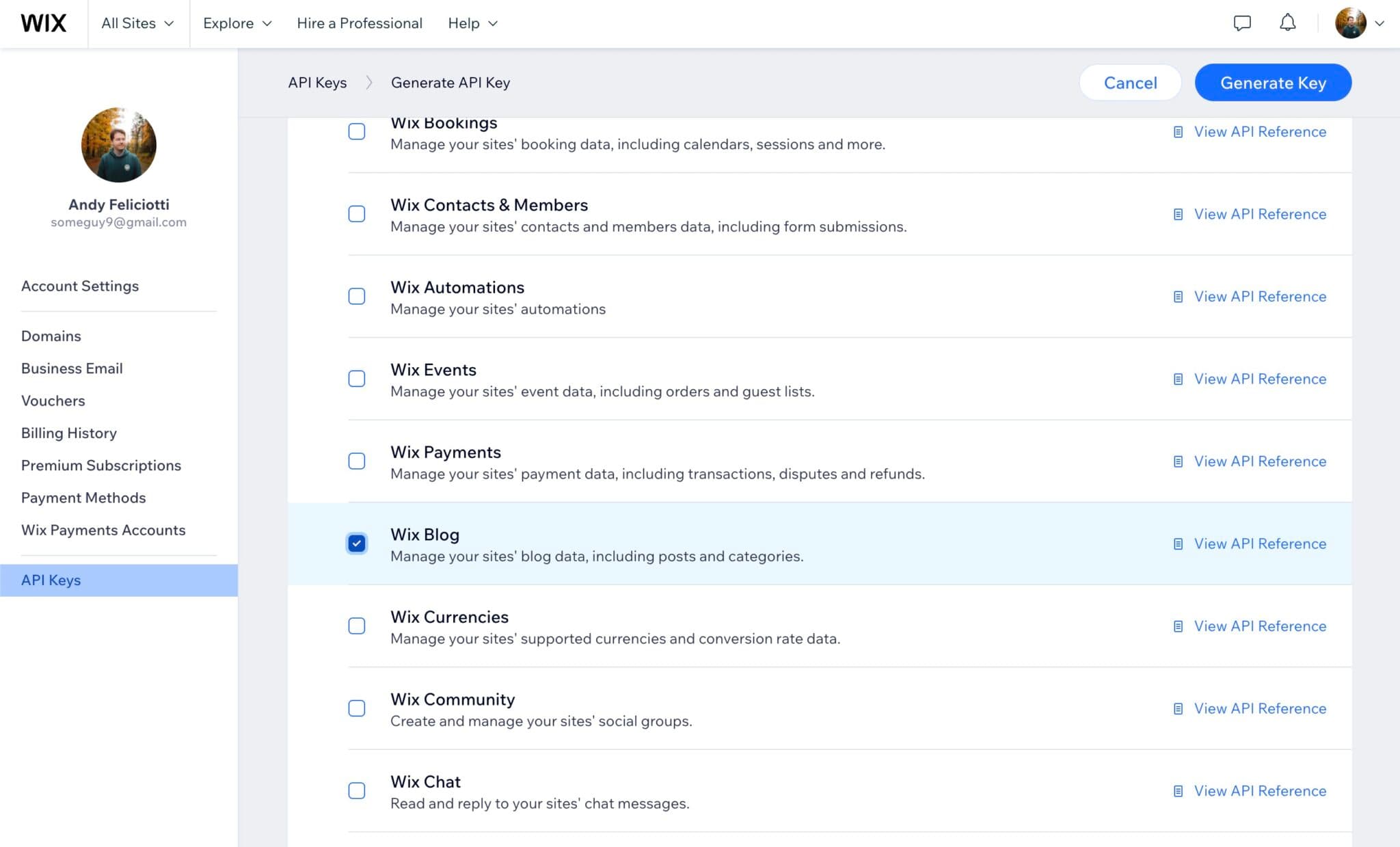
In Wix, go to Settings → API Keys → Generate API Key.
Name the key, then grant Wix Blog permissions. Generate and copy the token.
3) Account ID
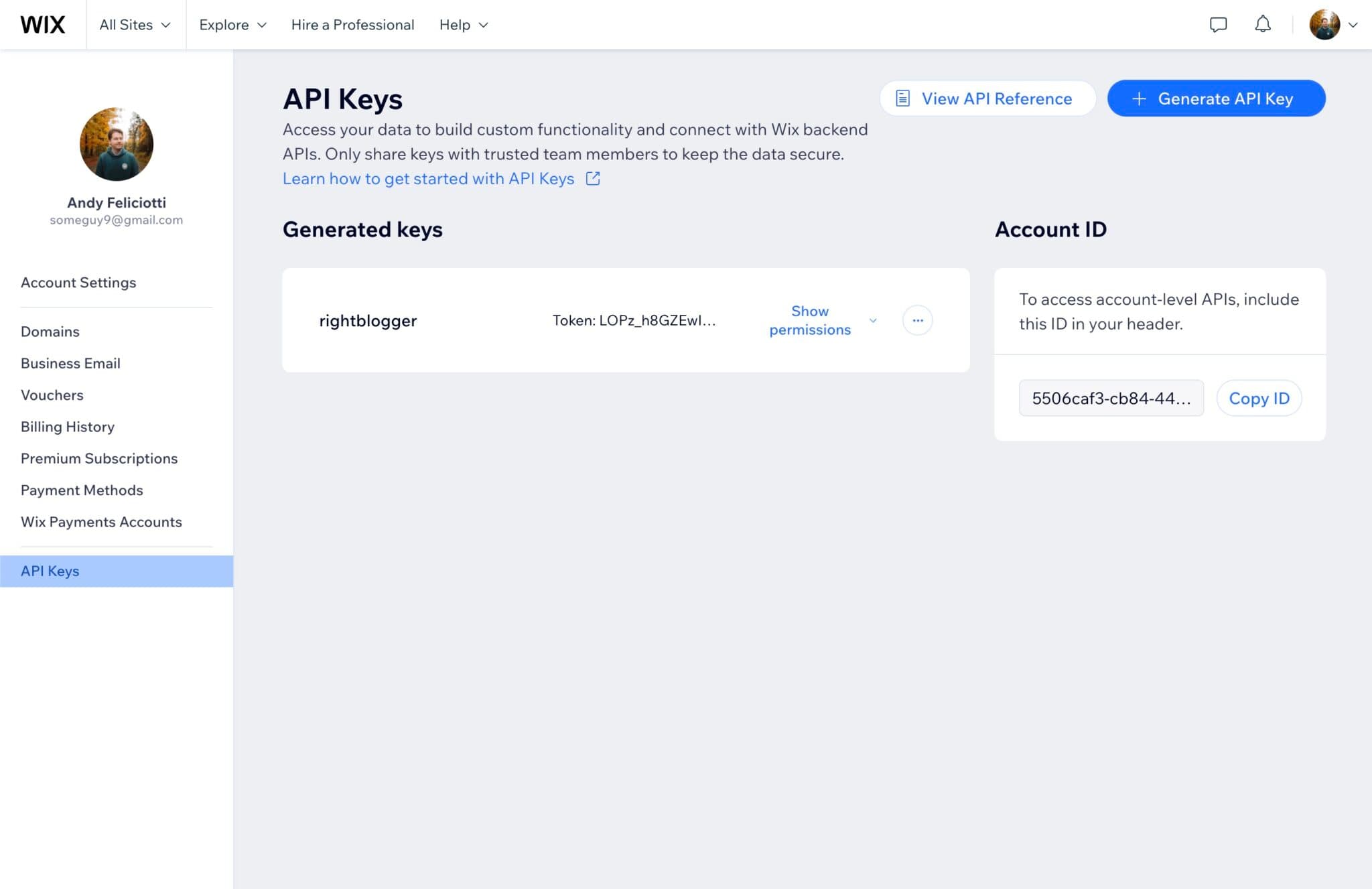
On the API Keys page, copy the Account ID shown on the right.
Set it up in RightBlogger
- In RightBlogger, open Projects, then Integrations.
- Choose Wix.
- Paste your Wix Site ID, Wix API Key, and Wix Account ID.
- Choose Publish Immediately to post live, or leave it off to create a draft in your Wix blog.
- Click Save Changes.
Send content to Wix
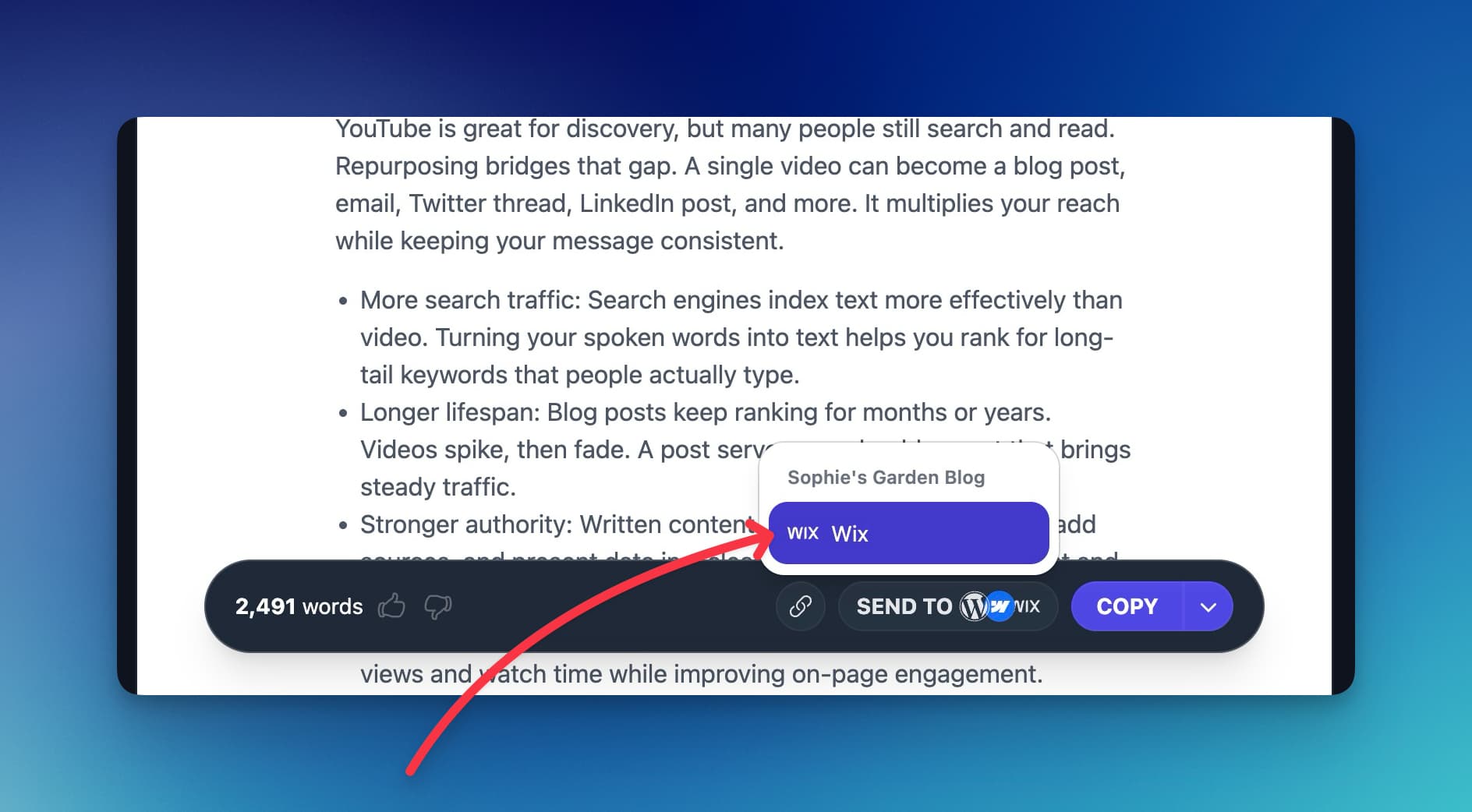
Create your article in RightBlogger. Click Send To, choose Wix, and your post will appear in Wix as a draft or live post based on your setting.
Conclusion
With the Wix integration, you can move content from RightBlogger to your blog in seconds. Keep drafts for review, or publish right away when it is ready. If you need help with keys or IDs, check the screenshots above or reach out to our team.
What do I need to connect my Wix site to RightBlogger?
You need three things: your Wix Site ID, a Wix API Key, and your Wix Account ID.
Your Wix Site ID is in the URL when you are in your Wix dashboard. Copy the part of the URL path shown in the screenshot in the guide.
To get the API Key, go to Settings, then API Keys, then Generate API Key. Give it a name and make sure you grant Wix Blog permissions so RightBlogger can create posts.
On that same API Keys page, you can also copy your Account ID from the right side. Then you are ready to add everything in RightBlogger under Projects and Integrations.
Where do I paste my Wix Site ID, API Key, and Account ID in RightBlogger?
In RightBlogger, open Projects, then go to Integrations, and choose Wix. Paste your Site ID, API Key, and Account ID into the Wix integration fields.
After that, pick how you want posts sent to Wix. Turn on Publish Immediately to post live, or leave it off to send drafts you can review first.
Click Save Changes when you are done. If you want to see all supported platforms, check the RightBlogger platform integrations list.
If you run multiple sites, make sure you are adding the credentials for the right Wix site. A mix-up here is the most common cause of posts going to the wrong place.
Can I send posts to Wix as drafts instead of publishing right away?
Yes. If you leave Publish Immediately turned off in the Wix integration settings, RightBlogger will send your post to Wix as a draft.
Draft mode is helpful when you want to add final images, double-check formatting, or get approval before the post goes live. It also helps if you want to schedule the post inside Wix later.
If you do want one-click publishing, turn Publish Immediately on. You can change this setting anytime based on your workflow.
For teams that plan content ahead, you may also want to use RightBlogger post scheduling to stay consistent.
How do I send an article from RightBlogger to my Wix blog?
Write your article in RightBlogger, then click Send To and choose Wix. RightBlogger will push the content into your Wix blog.
The post will land as either a draft or a live post, based on your Publish Immediately setting. This saves time because you do not have to copy and paste content between tools.
If your post does not show up, re-check that your Wix API Key has Wix Blog permissions. Also confirm your Site ID and Account ID match the correct Wix site.
If you need the setup steps again, use the Wix integration help guide.
How can RightBlogger help me write better Wix blog posts faster?
RightBlogger helps you go from idea to publish-ready post faster by combining writing and publishing in one workflow. You can create your article, then send it to Wix in a few clicks.
Start with the RightBlogger AI Article Writer to build a full draft quickly. Then edit for your voice and add your final Wix formatting before publishing.
If you want more consistent tone across posts, set up your preferences with MyTone. That helps your Wix blog sound like you, even when you write faster.
When you are ready to scale, you can also explore automation options to keep your content pipeline moving. The goal is less busywork and more time spent improving your content.
New:Autoblogging + Scheduling
Automated SEO Blog Posts That Work
Try RightBlogger for free, we know you'll love it.

- No Card Required
- Blog Posts in One Click
- Unlimited Usage


Leave a comment
You must be logged in to comment.
Loading comments...