How to Use Projects in RightBlogger
Set reusable style presets, organize client content, and prevent settings from carrying between projects.
Managing and organizing content creation can be a challenge, especially when you’re juggling multiple projects or working for different clients. But, we’ve solved that problem with the Projects feature in RightBlogger!
Think about how much time you can save when everything is organized, and your settings are lined up in presets. Start by heading over here to access your projects.
In this guide, I’ll walk you through how to effectively use Projects to speed up your workflow and boost productivity while using RightBlogger.

What Are RightBlogger Projects?
The Projects feature allows you to create pre-configured content settings that you can reuse for each tool use inside RightBlogger. If you’re tired of constantly adjusting your target audience or writing style across different blog posts or tools, this feature will quickly become one of your favorites.
Here’s what you can do with Projects:
- Save settings (e.g., language, tone, target audience) as templates for when you’re using tools.
- Organize content by project name (for multiple clients or topics) in the content dashboard.
Creating a Project
Here’s how to set up a new project in just a few clicks.
- Login to RightBlogger and go over to the left-hand side menu where you’ll see “Projects.”
- Name your new project by hitting “Add Project” on the top of the screen.
- Decide on the details. You can set most RightBlogger settings like writing style (MyTone, fun, conversational, professional, etc.), language, or additional instructions. You can even set up integrations to connect to your CMS.
- Once you set your settings, hit Add Project, that’s it!
You can now use this project as a template moving forward in most RightBlogger tools.
Project Settings and Defaults
Each project has settings that apply to all content you create within it. You can configure these in the project settings:
- Default Country and Language: Set a default country and language so your content targets the right audience every time.
- Learn from Website: Enter your site URL and RightBlogger will use AI to learn from your existing content, improving the relevance of what it generates.
- AI Image Defaults: Choose a default image style (Brand Text, Watercolor, Cinematic, Illustration, or Sketch) and set a brand color so generated images stay on-brand.
- CTA Links: Define call-to-action links that the AI automatically includes as natural inline links in your generated articles.
- Email Notifications: Get notified with post ideas and keyword suggestions for your project.
Teams and Collaboration
You can invite team members to your project so they can collaborate in the Content Planner, manage project settings, and publish through your connected integrations. Add teammates from the project settings page.
Choosing Which Emails Each Member Gets
Adding somebody to a project gives them access, not mail. Every project email is opt-in per person, so teammates receive nothing until you check a box for them.
In your project settings, open Notifications. Under Also send to you will see each project member with a checkbox for the three emails this project can send:
- Report: the weekly Search Console recap for the project, covering clicks, impressions, rankings, and post ideas based on what is working.
- Planner: an email whenever a Content Planner post is published or a draft is created.
- Agent: the batched Site Agent digest, sent when the agent applies or queues edits for the project.
That lets you route the right email to the right person, like sending the weekly performance recap to whoever handles marketing while your writer only gets Content Planner alerts.
Members can also manage this themselves. Anyone on the project sees their own three switches and can turn off any email addressed to them, whether or not they own the project. If a project has no members yet, the section stays hidden, so solo accounts see no change.
Using Projects with RightBlogger Tools
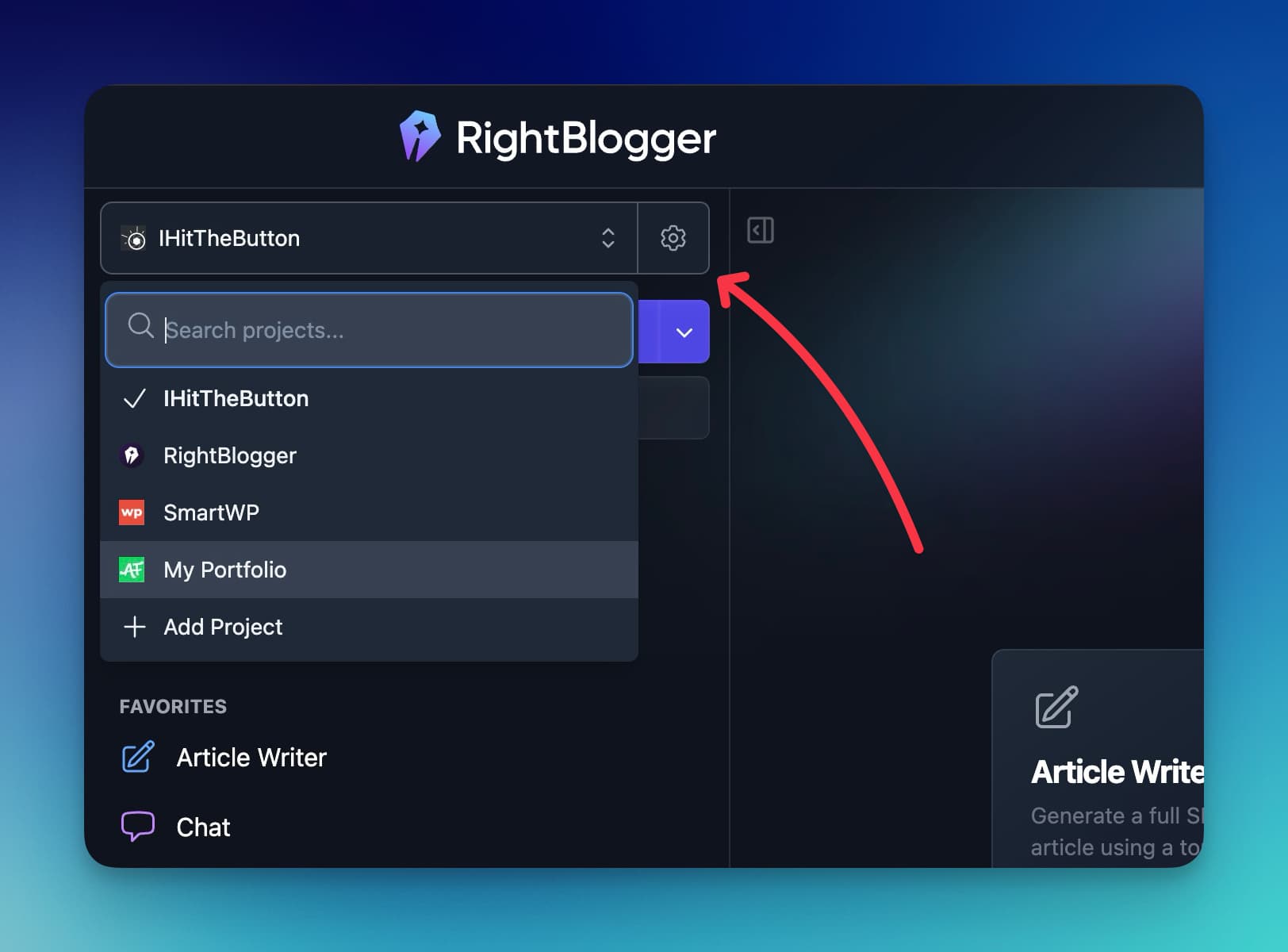
After setting up your project, applying it when using any RightBlogger tool is super straightforward. You’ll find the project picker on top of the sidebar. Click the project selector, select your project from the list, and you’ll see your saved content style instantly appear.
Keep in mind, if you’ve already started writing or making edits before switching projects, your content could be overwritten by the new preset. So make sure to select your project before diving into any actual tool options.
After you pick a project your browser will also remember what project you’re using for other parts of RightBlogger.
Organize and Filter Content by Projects
Once you get your projects up and running, you’ll notice an extra layer of organization on the Content Dashboard. All pieces of content are now sorted based on their respective project, so you can:
- Filter content quickly for different blogs or clients.
- Keep track of what content belongs where.
If you’re producing different materials for multiple clients and need to switch between them, you can filter by Project names directly on this dashboard. All the content you made using that project will be displayed in one single view.
To maximize the value you get from your tools, read our piece on AI for content marketers, which might shed more light on why features like Projects can significantly help marketers and bloggers.
How Projects Work with Automations & Auto Blogging
Once you’ve connected your CMS and set up your Projects, you can take things a step further with Automations and Auto Blogging. This is where your saved project settings really shine.
With Auto Blogging, RightBlogger can automatically generate and schedule content for each project using your preferred tone, language, and integrations. Projects help keep all of this neatly separated, so your client work, niche sites, and personal blogs each follow their own publishing style and schedule.
Using Projects with automations lets you:
- Publish content on a daily, weekly, or monthly schedule
- Auto-create posts based on keyword research and real search demand
- Turn YouTube uploads into full blog posts instantly
- Keep each site’s content organized inside its own calendar
If you’re juggling multiple blogs or clients, Projects ensure that every automation uses the correct style, settings, and CMS connection, so you can run entire websites on autopilot without mixing anything up.
Conclusion
If you work with multiple clients, need to create different styles, or simply crave more organization in your blogging efforts, RightBlogger’s Projects is a feature you’ve got to try. It allows you to automate your blog, reuse settings in RightBlogger, organize content, and keep everything flowing smoothly across various types of work.
Each project also has its own AI memory that learns from the feedback you leave on generated content, so the AI gets better at matching your voice the more you use it. See How to teach the AI in your project.
Automated SEO Blog Posts That Work
Try RightBlogger for free, we know you'll love it.