How to Use The Creativity Slider
Do you want more control over your RightBlogger outputs? RightBlogger’s new Creativity Slider lets you fine-tune just how creative or predictable your content will be. Here’s how you can make the most out of this innovative feature.
What is the Creativity Slider?
The Creativity Slider is a new addition to most tools within RightBlogger. It allows you to adjust the creativity level of your generated content. This is also known as temperature in AI models.
- Low Creativity: Produces predictable and repetitive content.
- High Creativity: Adds randomness and flair to your content.
- Middle Setting: Uses a balanced value, optimized for each specific tool.
Importantly, this slider does not affect the accuracy or other crucial factors in your content creation.
How to Use the Creativity Slider
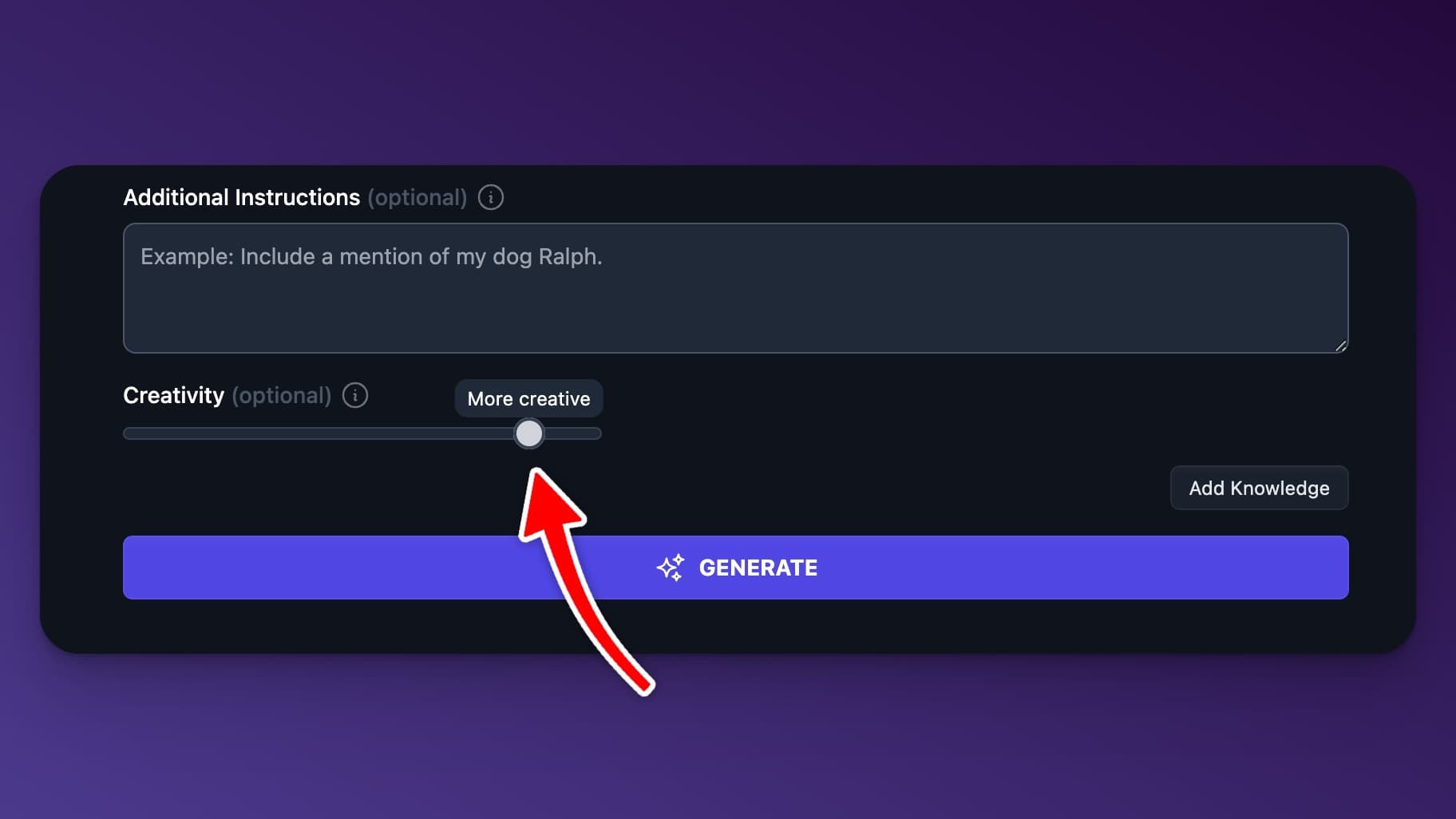
Using the Creativity Slider is simple. Here’s a step-by-step guide to help you get started:
- Select a Tool: Open the RightBlogger tool of your choice.
- Enter Your Prompt: Type in the content or topic you want to generate.
- Adjust the Slider: Located below your text field, move the slider to your desired creativity level. (This is typically in the advanced dropdown area near additional instructions.)
- Generate Content: Click the generate button and watch your custom content appear.
Example Workflows
High Creativity Setting
With high creativity, your content becomes more engaging and unique. For instance, a simple prompt about “waking up early to start a hike” might expand into a vivid description of the serene morning nature.
Prompt: Waking up early to start a hike
Output: Enjoying the peace and morning of nature as the world wakes up.
Low Creativity Setting
Lowering the creativity results in straightforward, factual content. Using the same prompt, it will stick closely to the provided information.
Prompt: Waking up early to start a hike
Output: I woke up early to start the hike.
Standard Middle Setting
This setting balances creativity and predictability. It will give you content that is neither too bland nor overly extravagant.
Prompt: Waking up early to start a hike
Output: I started my day early with a hike, enjoying the cool morning air.
Conclusion
The Creativity Slider offers granular control over the output of your content, empowering you to tailor it to your specific needs. Whether you need straightforward text or creative flair, RightBlogger has you covered. Experiment with different settings to see what works best for your projects.
Enjoy using the new Creativity Slider across most of the tools in RightBlogger!
What does the Creativity Slider change in RightBlogger?
The Creativity Slider controls how “random” or “predictable” your AI output is. In AI terms, it adjusts the temperature.
Low creativity gives more direct, repeatable writing. High creativity adds more variety, voice, and unexpected ideas.
This slider is meant to change style and wording, not truth. It does not make the content more accurate or less accurate, so you should still review facts and details before publishing.
If you want the official help page with a quick overview, see the RightBlogger Creativity Slider help page.
When should I use low creativity vs high creativity?
Use low creativity when you need clear, consistent writing that stays close to your prompt. This works well for summaries, product descriptions, step-by-step instructions, and content where you want fewer surprises.
Use high creativity when you want fresh angles, stronger imagery, or more engaging wording. It is great for hooks, story intros, social captions, and brainstorming.
If your output feels too boring, move the slider up a bit. If it feels too “wild” or off-topic, move it down and regenerate.
Where do I find the Creativity Slider in RightBlogger tools?
In most RightBlogger tools, the Creativity Slider sits under your main text box. It is usually inside the advanced dropdown area near the Additional Instructions field.
A simple workflow is: pick a tool, enter your prompt, set the slider, then generate. If the result is close but not perfect, adjust the slider and run it again.
If you are not seeing the advanced area, look for the dropdown or settings section under the prompt field. You can also use the Additional Instructions field help guide to fine-tune your results.
What is the best “middle” setting, and why is it recommended?
The middle setting is the balanced option between predictable and creative. It is often the best starting point because it aims for natural writing without drifting too far from your prompt.
RightBlogger optimizes this middle setting for each tool, so it can be a safe default when you are not sure what you want yet. It also helps you get consistent results across different content types.
Start in the middle, then adjust in small steps based on what you see. That is usually faster than guessing a high or low setting first.
How can I get better results using the Creativity Slider with RightBlogger?
For better results, pair the slider with a clearer prompt. The more specific your topic, audience, and goal are, the more useful the creativity setting becomes.
If you want creative ideas but still need structure, keep the slider near the middle and add a short instruction like “write in a friendly, simple tone” or “use short paragraphs.” If you need a bigger lift in the prompt itself, run it through the Prompt Improver tool first.
You can also test two outputs quickly: one low creativity for clarity, then one higher creativity for punch. Mix the best parts together for a final draft.
New:Autoblogging + Scheduling
Automated SEO Blog Posts That Work
Try RightBlogger for free, we know you'll love it.
- Automated Content
- Blog Posts in One Click
- Unlimited Usage