How to Cancel Your RightBlogger Subscription
Thinking about canceling your RightBlogger subscription? Don’t worry, we’ve got you covered. Follow the simple steps below to cancel your subscription hassle-free.
Visit Your Account Page
First things first, head over to your account page. This is done by clicking your avatar in the top right menu and clicking ‘account’. You can also do this by clicking here.
Click ‘Manage Subscription’
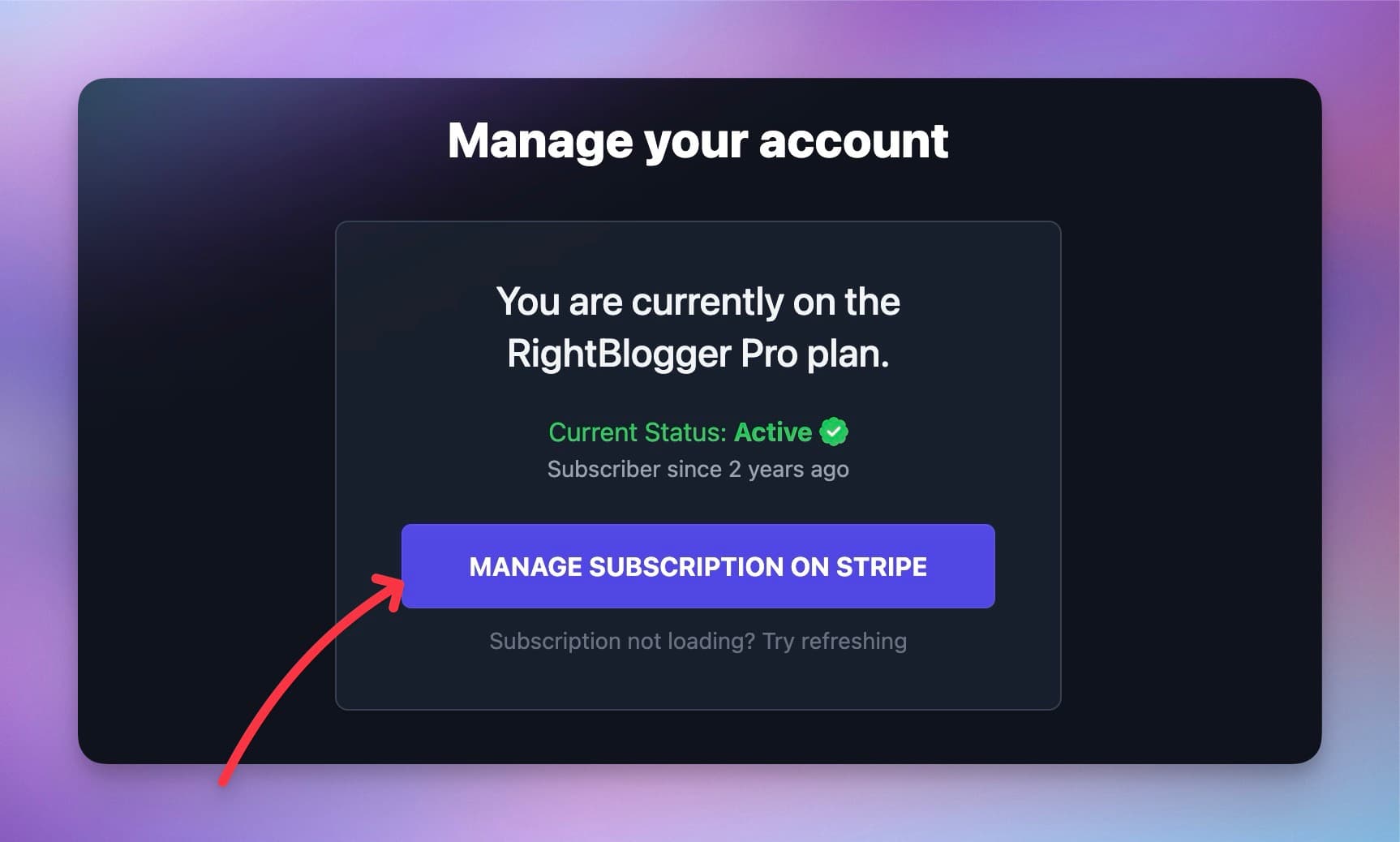
Once you’re in your account page, find the ‘manage subscription’ button. It’s usually right on the main dashboard, so you shouldn’t have to hunt too hard. Just click on it, and you’re one step closer to freedom.
Select the Cancel Option
After clicking ‘manage subscription’, look for the cancel subscription option. This is your golden ticket out. Click on it, and you’ll be guided through the remaining steps. You might need to confirm your action, but it’s pretty straightforward.
Will My Content Be Deleted?
Good news! Canceling your RightBlogger subscription won’t delete your content. All your articles and content you’ve generated will stay intact. You’ll lose access to premium features but can always resubscribe at anytime.
Conclusion
Canceling your RightBlogger subscription is quick and easy. Just visit your account page, click ‘manage subscription’, and follow the prompts. If you need help you can also email us at contact@rightblogger.com.
How do I cancel my RightBlogger subscription step by step?
To cancel your RightBlogger subscription, go to your account page, click Manage Subscription, then choose the Cancel option.
Start by clicking your avatar in the top-right menu and selecting Account, or open the RightBlogger account page.
On your dashboard, click Manage Subscription. Then select Cancel Subscription and follow the prompts to confirm.
Will I lose my articles or content if I cancel RightBlogger?
No. Canceling your RightBlogger subscription will not delete your content.
Your saved articles and any content you generated will still be there. The main change is that you will lose access to premium features after your plan ends.
If you come back later, you can resubscribe and keep working with the same account and content.
Where is the “Manage Subscription” button in RightBlogger?
You can find Manage Subscription on your account dashboard after you log in.
Go to your Account area by clicking your avatar, then Account, or use the RightBlogger account page.
The button is usually easy to spot on the main dashboard. If you do not see it, try refreshing the page or checking that you are logged into the correct email.
What if I need help canceling my RightBlogger subscription?
If you get stuck, you can email RightBlogger support and they can help you finish the cancellation.
Use the email address in the post: contact@rightblogger.com. Include the email you use to sign in, plus a short note that you want to cancel.
For extra guidance, you can also review the steps on the RightBlogger Cancel Subscription help page.
If I cancel, what should I do before my plan ends to save time later?
Before your plan ends, export or copy anything you want handy, and finish any key drafts so you can publish them when you are ready.
Many users run final updates like outlining, editing, and SEO improvements on their most important posts. That way, your content is in a good spot even after premium access ends.
If you plan to restart later, it helps to note which tools you used most so you can pick up fast. You can also review what is included on the RightBlogger Pricing Plans page if you are deciding what to do next.
New:Autoblogging + Scheduling
Automated SEO Blog Posts That Work
Try RightBlogger for free, we know you'll love it.

- No Card Required
- Blog Posts in One Click
- Unlimited Usage


Leave a comment
You must be logged in to comment.
Loading comments...