Free TikTok Safe Zone Template (UI Overlay PNG)
Download a transparent 4K PNG that marks where TikTok UI covers your video.

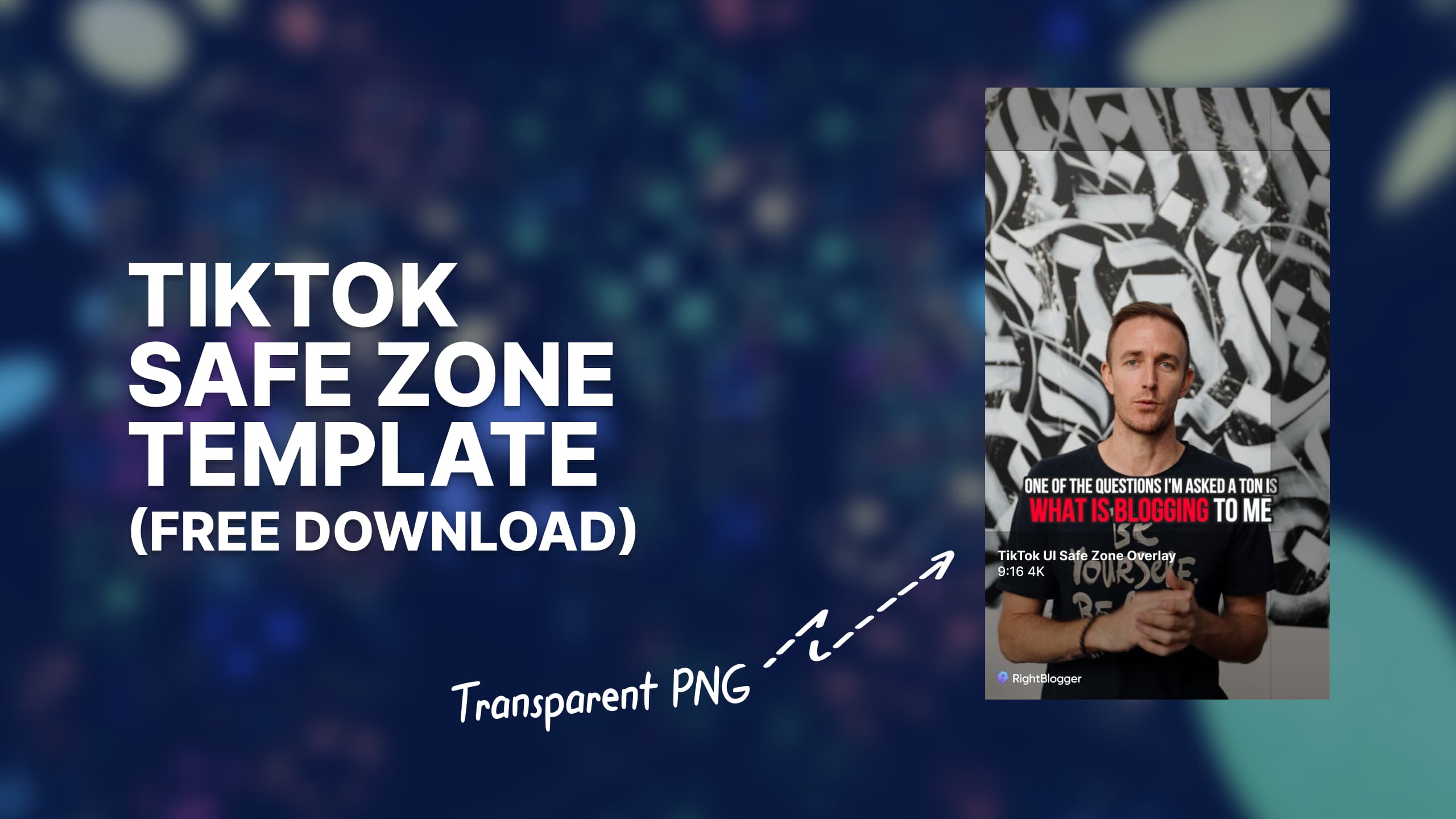
TikTok’s official In-Feed recommendation is vertical 9:16, at least 540×960. The safe zone is not a fixed box. It changes with caption length, add-ons, and LTR vs Arabic RTL. A preview is not the same as a device. Official: TikTok In-Feed ads specs.
This free TikTok safe zone template is a starting overlay, not a guarantee. Keep faces and text inside the clear area, then check the live app. 1080×1920 is common HD 9:16 on TikTok’s preview toolbox. It is not In-Feed’s published recommended resolution.
Be sure to also check out RightBlogger’s TikTok idea generator tool (you can try it free ☺️)
Instagram Reels and YouTube Shorts share the same 9:16 habit. They do not share TikTok’s chrome. Use the overlay as a starting crop, then check each app.

We made this template as a 4K resolution transparent PNG so you can easily add it to any video editing software. Simple place the template on top of your video to preview how the TikTok will obstruct your video content.
Creating videos for TikTok and Reels becomes a breeze with the help of RightBlogger’s free TikTok UI overlay template, ensuring your content shines without important elements getting obscured by the interface.
How to Add TikTok Safe Zone to Final Cut Pro
If you use Final Cut Pro you can add a custom overlay image to your editing interface by clicking the “View” button. Then choose “Choose Custom Overlay” and select the PNG overlay.
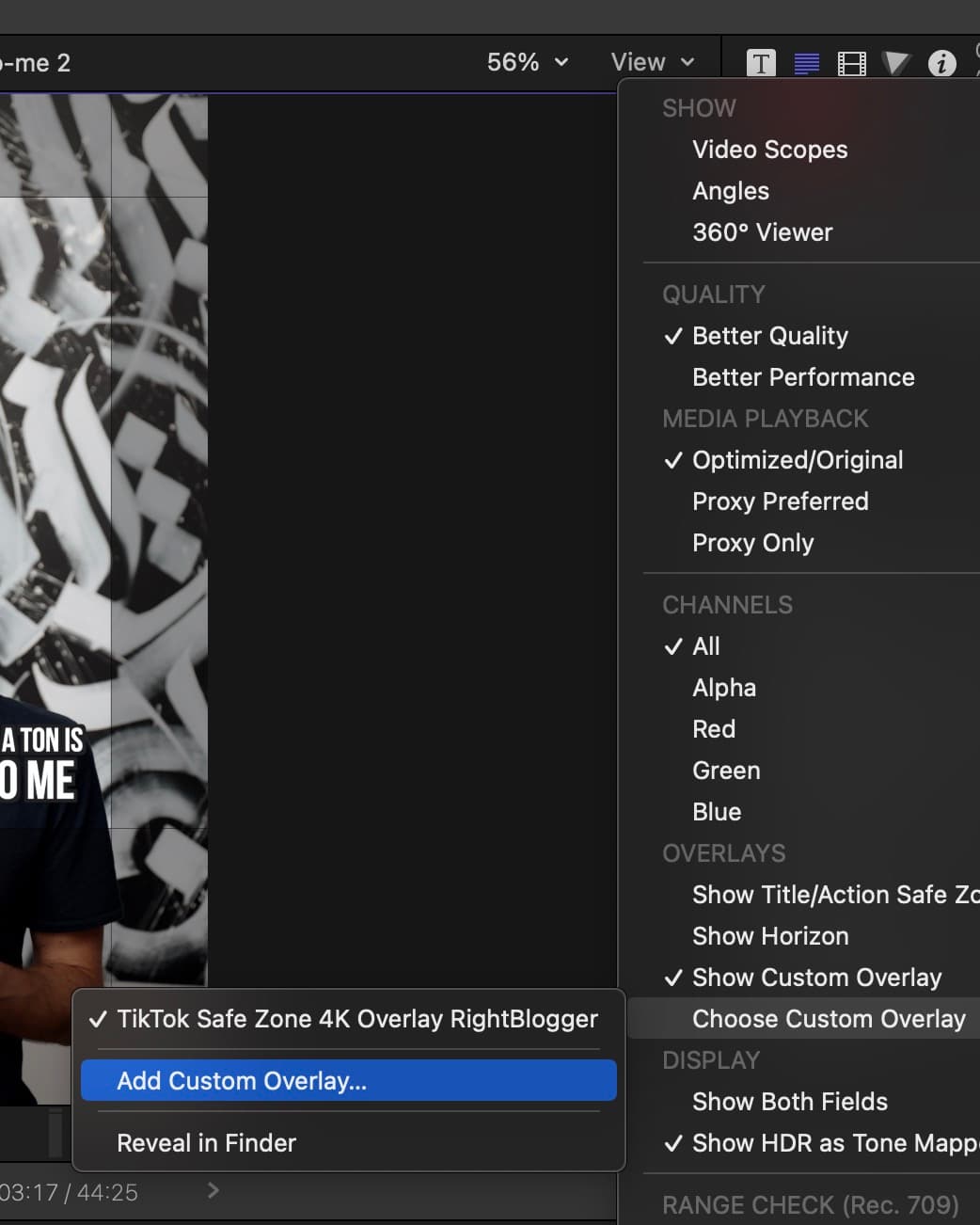
Adding the TikTok safe zone template this way is an easy way to always have it for video projects where it’s needed. Final Cut Pro will also scale the overlay so it will work for 4K or 1080p vertical projects (and be sure to peep my picks for the best free Final Cut Pro plugins if that’s your jam).
Why TikTok’s Safe Zone Matters for Your Videos
Ever spend ages perfecting a video, adding great visuals and cool text, only to upload it to TikTok and find half your caption hidden by the like button? Or maybe a key part of the video is blocked by your username?
It’s a common frustration.
This is why the safe zone matters. Buttons, username, caption, and add-ons sit on the video. A longer caption (and TopView’s longer caption) shrinks the clear area. Official TopView note: TikTok TopView ads.
If you don’t pay attention to the safe zone, you risk:
- Important Stuff Gets Hidden: People might not be able to read your text, captions, or see your logo clearly.
- Key Visuals Get Blocked: The main focus of your video, like someone’s face or a crucial action, could get awkwardly cut off.
- Viewers Get Annoyed: If people can’t easily see or read everything, they’re more likely to just keep scrolling.
- It Looks Less Pro: Videos that keep important things clear of the interface simply look cleaner and better thought out.
Think of the safe zone like knowing where not to place your essential content. By keeping the main things people need to see – faces, text, logos, the main action – inside this “safe” area while you’re editing, you make sure everyone can actually see it clearly on TikTok.
It helps get your message across, makes your video look good, and means your hard work doesn’t get lost behind a button. It’s an easy step that makes a big difference!
FAQ
How does the TikTok safe zone overlay improve my videos? It shows where app buttons and text fields appear, so you can keep important visuals and text from getting covered.
Can I use this overlay template in any video editor? Yes, the PNG format is compatible with most editing programs, including Final Cut Pro, Adobe Premiere, and CapCut.
Does the safe zone overlay work for Instagram Reels and YouTube Shorts? Same 9:16 habit, not the same chrome. Use it as a start, then check each app.
Is the TikTok safe zone overlay free to use? Yes. Use the Download TikTok Safe Zone 4K Overlay PNG button on this page.
Will my video look correct if I only use the TikTok safe zone? No. The overlay is a start, not a guarantee. Caption length and add-ons move the box, and a preview is not a device.
Conclusion
In conclusion, this TikTok Safe Zone Template is an essential tool for content creators on this popular social media platform. By providing a clear and user-friendly interface, this template ensures that your videos will always be perfectly framed, avoiding any important content being cut off.
Since it’s just a PNG overlay you can easily adjust the safe zone for any video editing software or resolutions, resulting in visually appealing and professional-looking videos that stand out from the crowd.
Reels and Shorts are still 9:16. Check those apps separately. Their buttons are not TikTok’s.
Designing visuals for LinkedIn too? Our LinkedIn banner size guide covers the same kind of crop-and-overlap math for personal profile and company page banners.
Need ideas for your short form TikTok videos? You’ll love RightBlogger’s TikTok content idea generator.

Article by
RightBlogger Co-Founder, Andy Feliciotti builds websites and shares travel and photography adventures on YouTube.
Automated SEO Blog Posts That Work
Try RightBlogger for free, we know you'll love it.





Leave a comment
You must be logged in to comment.
Loading comments...